Category: Uncategorized

  • Stop Paper Jams: Loading, Humidity & Media Presets That Work

    Stop Paper Jams: Loading, Humidity & Media Presets That Work

    Stop Paper Jams: Loading, Humidity & Media Presets That Work

    Stop paper jams with correct loading and media settings
    Stop Paper Jams: Loading, Humidity & Media Presets That Work

    Most paper jams aren’t catastrophic failures—they’re paper and path problems. Sheets curl with humidity, trays are loaded a bit too tight, media presets are left at “Plain” when you’re actually feeding thick stock, or duplex is forced on paper that is too thin for clean flips. Fixing jams reliably is about three levers you control every day: how you store and load paper, which driver preset tells the printer how to move and heat the sheet, and how you route special media through the device.

    This brand-neutral guide gives you a calm, repeatable routine that works for home and small-office printers. You’ll learn the right loading technique (with a quick hand check for curl), how to pick media presets that slow the path for heavier stocks, how to tame humidity and show-through in duplex, and when to use the bypass/manual tray so rollers don’t fight the sheet. We’ll finish with a prevention routine that keeps jams rare, and a set of FAQs you can skim when the pressure is on.

    Scope: Educational guidance only—no remote access, repairs, or warranty services. All steps are brand-neutral and safe to try at home.

    How paper feeding actually works (why jams happen)

    Printers move paper with a series of rollers. The pick roller grips the top sheet, separation pads prevent a double pick, feed rollers advance the sheet past sensors, and a fuser (laser) or heated path/dry time (inkjet) fixes the image. If the sheet is too curled, too thick for the chosen speed/heat, or misaligned in the tray, it rubs a guide, lags a sensor, or stalls during duplex flips. That stall is your “jam.”

    • Pick & separation: If the stack is overly tight or fanned badly, the roller grabs two sheets—jam or misfeed.
    • Transport: Curled or damp paper drags the side guides, arrives late at a sensor, and the device stops to avoid tearing.
    • Fuser/dry: Heavy or glossy media needs slower travel to bond toner/ink; wrong preset = smear, wrap, or jam.
    • Duplex flip: Thin stock (70–75 gsm) curls from heat/ink and catches during the turn—classic duplex jam.

    Identify the jam pattern (location = clue)

    Where it stopsTypical symptomsMost likely causeFirst fix to try
    Tray/pick areaTop sheet chewed or 2 sheets at onceOverfilled tray, tight guides, no “airing”Reduce stack, square edges, fan lightly
    Mid-path (before fuser)Sheet skewed, rub marks on one edgeCurl/humidity or misaligned guidesFlip stack (curl down), condition paper
    Fuser/outputSmudge/wrap on thick or glossy stockWrong media preset (too fast/too cool)Choose “Heavy/Thick/Glossy” preset
    Duplex unitStops only on 2-sided jobsStock too thin; curl after side 1Use 90–100 gsm or single-sided
    Bypass/manual feedEnvelope crumples at entranceGuides not tight; wrong pathSeparate manual tray; feed flap first

    Paper basics that matter (GSM, grain, humidity, curl)

    GSM (grams per square metre) is weight—not thickness exactly, but a good stand-in. Everyday A4 office paper is 80 gsm. Heavier stocks (90–120 gsm) feel stiffer and travel straighter. Very thin paper (≤75 gsm) is fragile and curls with heat; it’s the #1 cause of duplex jams. Grain describes the direction fibres lie; going “with the grain” generally feeds cleaner in long paths. Humidity adds moisture, softens fibres, and encourages curl. Store reams sealed and only open what you’ll use in 1–2 weeks.

    StockTypical useJam riskDriver preset tip
    70–75 gsmCheap copy paperHigh (duplex curl)Prefer single-sided; slow speed if possible
    80 gsmStandard documentsLow-mediumPlain/Normal OK
    90–100 gsmDuplex text, reportsLow (stiffer)“Thick/Heavy 1” for duplex
    120–160 gsmCovers, letterheadsMedium (path stress)“Heavy” or “Cardstock”; manual tray
    Labels/EnvelopesMailing, filingMedium-highDedicated preset; manual tray path
    Glossy/PhotoPhotos, brochuresMedium (slow dry/fuse)“Glossy/Photo”; single-sided
    Quick curl test: Hold the stack at the short edge and look across the top—if pages arc up or down, that’s curl. Load with the curve facing down into the tray so the path flattens it as the sheet moves.

    Correct loading technique (tiny habits = fewer jams)

    1. Condition the stack: Take 10–15mm from a sealed ream. Tap on a flat desk to square edges; fan lightly once to break static.
    2. Check curl/humidity: If curled, flip the stack so curl faces down in the tray. If sheets feel soft/damp, switch to a fresh sealed bundle.
    3. Set guides snug, not tight: Slide side guides to just touch the stack—no bowing. Too tight = friction; too loose = skew.
    4. Don’t overfill: Keep below the tray’s fill line; overfilling stops the pick roller from cleanly grabbing one sheet.
    5. Close tray fully: Half-latched trays cause misalignment and sensor confusion.

    Pick the right driver/media preset (the jam prevention switch)

    Driver presets tell the printer how fast to move the sheet and how much heat/ink to apply. Wrong preset = rushed transport on heavy stock or insufficient bonding on glossy—both produce jams and smudges. Always choose the preset that matches the heaviest media you’re actually loading.

    Media presetWhat it changesWhen to useWhat you avoid
    Plain / NormalDefault speed/heat80 gsm everyday textUnnecessary heat/curl on thin; stalls on heavy
    Thick / Heavy 1Slower path, more bond90–100 gsm, duplex reportsDuplex curl, fuser slip
    Heavy 2 / CardstockSlowest path, high bond120–160 gsm coversWrap/smear on thick stock
    Labels / EnvelopesLow heat at entrance, slow turnLabel sheets, envelopesAdhesive bleed, flap crush
    Glossy / PhotoHigh bond, longer dwellPhoto & coated mediaWet smudge, roller offset

    Duplex without drama (stock, margins, show-through)

    • Choose the right stock: Duplex behaves best at 90–100 gsm. Below 80 gsm, expect curl and show-through.
    • Binding edge: Use long-edge for portrait A4. Short-edge flips can stress the path on some models.
    • Margins & coverage: Avoid heavy solids near the flip edge; leave 10–12mm clear if possible.
    • Driver preset: “Thick/Heavy 1” for duplex even at 90–100 gsm—slight slowdown prevents curl jams.

    Humidity & storage: your quiet jam preventers

    Paper is a sponge. Open reams absorb moisture from the room; pages become soft and curl after heat. Keep one ream sealed; store the in-use stack in a resealable bag when not printing. If a room is very humid, move paper to a drier cupboard overnight. For winter dryness (static cling), a quick fan and squaring removes static load that causes double-picks.


    Special media (labels, envelopes, glossy)

    Labels

    • Use only printer-rated sheet labels; never run partly used label sheets (exposed adhesive peels & wraps rollers).
    • Select the Labels preset; feed from the manual tray if available for a straighter path.

    Envelopes

    • Use the dedicated envelope path; set guides tight; feed flap orientation as the device diagram shows.
    • Pick the Envelopes preset to slow entry and reduce flap crumpling.

    Glossy/Photo

    • Single-sided only unless the device explicitly supports duplex on coated media.
    • Choose Glossy/Photo; allow extra dry time before handling.

    Maintenance that matters (safe & simple)

    • Rollers: Power off; open the path; wipe pick/separation rollers with a dry lint-free cloth. Avoid solvents unless manual says so.
    • Dust: Remove visible lint from the tray area; dust increases mis-pick and skew.
    • Path check: Inspect for torn scraps from past jams; a tiny triangle can re-jam every time.
    • Update once, not weekly: A stable driver plus correct presets beats constant software churn.

    Windows & macOS: where to set media presets

    Windows 10/11macOS
    Open PDF → PrintPreferences / Properties → Paper/Quality or Media → choose Thick/Heavy for 90–100 gsm, Cardstock for 120–160 gsm, Labels/Envelopes for specialty. Layout tab → Duplex: Long-edge. Save as preset. File → Print → from the system drop-down (e.g., Layout/Paper Handling), choose Media Type or Quality & Media → set Thick/Heavy, Cardstock, or Glossy to match stock. Two-Sided: On; Binding: Long-edge. Save as Preset.

    Jam troubleshooting matrix (do this, then that)

    SymptomLikely causeActionNext step
    Jam on first sheet of stackOverfill, tight guidesLower stack; loosen guides slightlyFan 10 sheets; retest
    Jams mid-job onlyHeat-induced curlFlip stack; set “Thick/Heavy 1”Use 90–100 gsm; reduce coverage at edge
    Duplex jamsStock too thinSwitch to 90–100 gsmUse duplex-friendly preset; widen margins
    Smudge on heavy or glossyPath too fastUse “Heavy/Cardstock” or “Glossy”Manual tray; single-sided
    Envelope crumplesWrong feed pathEnvelope preset + manual trayCheck flap orientation diagram

    When to use the bypass/manual tray

    The manual tray is a straighter, slower entrance for fussy media. Use it for envelopes, labels, thick covers (120–160 gsm), and any curled batch you must print today. Set guides snug, choose the dedicated preset, and feed one or a few sheets at a time.


    If jams come with smudges or faint areas

    Jams and quality often share a cause: wrong preset for the stock. If toner rubs off or ink looks glossy-wet, you’re moving too fast or applying the wrong heat/dry profile. Shift the preset up (Heavy/Glossy), slow the path, and allow more bonding time. For laser devices, avoid ultra-thick covers unless the manual lists a supported path; forcing them through can wrap at the fuser.


    Make jams rare (small monthly routine)

    • Keep one ream sealed; rotate small, fresh stacks into the tray.
    • Store paper away from damp kitchens and sun-heated windowsills.
    • Clean rollers lightly; remove lint and scraps from the path.
    • Save OS print presets: Plain, Duplex-Thick, Cardstock, Labels, Envelopes, Glossy.
    • Prefer 90–100 gsm for duplex documents to stop curl flips.

    FAQs

    Why do jams happen more on rainy or humid days?

    Paper absorbs moisture from the air. Damp fibres soften and curl, especially after heat from a fuser or after a heavy ink pass. That curl pushes the sheet against guides and delays a sensor hit, so the device assumes a jam and stops to protect itself. The cure is simple: keep reams sealed, condition the stack before printing, and use slightly heavier stock for duplex documents during humid spells. If you must use a damp batch urgently, load with the curl facing down and choose a slower preset like “Thick/Heavy 1” to reduce path stress. After printing, spread pages to dry fully before stacking tightly—trapped moisture warps piles and encourages future misfeeds.

    What’s the quickest way to stop a recurring jam without tools?

    First, remove a third of the stack and fan the remaining pages to break static. Square the edges on a desk, set side guides so they just touch, and flip the stack so any visible curl faces down. Then change the driver preset up one level—Plain to Thick/Heavy 1, or Heavy 1 to Heavy 2 for covers—and try a 2-page test. This one-minute routine fixes the majority of home jams because it addresses the real causes: friction at pickup, skew from poor alignment, and path speed that’s too aggressive for the stock you’re feeding. If the same path jams again, move the job to the manual tray for a straighter entrance, especially for envelopes, labels, or 120–160 gsm sheets.

    Can I duplex on 80 gsm or below?

    You can, but it’s where most curl-induced jams live. After side one, the sheet warms and picks up moisture or heat stress, then curls into the flip path. If duplex is mandatory on thin stock, reduce coverage near the binding edge, pick “Thick/Heavy 1” to slow the motion, and keep the stack conditioned. The better answer is to move up to 90–100 gsm for two-sided text. It’s a small cost difference that buys you cleaner flips, fewer stops, and nicer-feeling documents with less show-through.

    My envelopes crumple every time—what am I missing?

    Most home printers need envelopes to enter through the manual/bypass tray with the correct orientation and a dedicated preset. The flap orientation diagram matters: feeding it wrong puts a double thickness under the rollers at the worst moment. Set the guides snug, use the “Envelopes” preset so the path slows at the entrance, and try one test envelope before a batch. Avoid cheap, fibrous envelopes that shed lint—debris on rollers causes repeated slips and mis-picks. If your model offers an envelope slot at a straighter angle, always prefer that route.

    Do I need special cleaner for rollers?

    Usually not. A dry, lint-free cloth is enough for routine care. Avoid alcohol or solvents unless your device manual explicitly says to use them; they can harden or swell rubber and make pickup worse. The goal is simply to remove dust and paper lint so the surface grips cleanly. If you see shiny, smooth rollers after years of use, they may have lost texture; gentle cleaning helps, but severe glazing is a wear issue and may require a service kit—something we don’t cover since we provide education only. Keeping paper clean and trays closed between jobs will slow that wear dramatically.

    Labels jam or peel—how do I print them safely?

    Only use full, unprinted label sheets that are rated for your printer type. Never re-feed a partially used sheet—exposed adhesive lifts and wraps around rollers, causing repeated jams. Select the “Labels” preset, which slows the path and adjusts heat/ink for adhesive-backed media. Feed from the manual tray for a straighter entrance, and keep the stack small (5–10 sheets). After printing, let labels cool/dry flat before peeling. For dense coverage, consider single-siding only; double heat passes can soften adhesives and cause edge ooze that contaminates the path.

    Nex Solutions provides brand-neutral education only. No remote access, repairs or warranty services.


  • Scanner Not Detected? Step-by-Step Fix for Windows & macOS

    Scanner Not Detected? Step-by-Step Fix for Windows & macOS

    Scanner Not Detected? Step-by-Step Fix for Windows & macOS

    Scanner not detected – brand-neutral guide
    Scanner Not Detected? Step-by-Step Fix for Windows & macOS

    “Scanner not detected” rarely means the machine is broken. It means your computer cannot reach the scanner service right now. That service might travel over a USB cable or your home Wi-Fi. If the operating system cannot talk to the right port, or the device is on a guest/island network, or the driver expects a path that no longer exists, your scan app gives up. The fix is practical and brand-neutral: confirm the physical path, pick the simplest driver the OS already trusts, point the connection directly at the device (if on Wi-Fi), and stabilise the address so the route remains valid tomorrow. This guide walks you through an order that consistently works on Windows and macOS without remote access, vendor accounts, or risky tools.

    Scope: Education-only, brand-neutral steps. You’ll learn USB vs Wi-Fi scanning logic, Windows/macOS clicks, address reservations for network scanners, and safe routines for ADF/flatbed quality. No remote access, repairs, or warranty services.

    How scanning actually works (in plain language)

    Think of a printer-scanner as two simple services living inside one box: a print service and a scan service. Your computer discovers each service via a driver. Over USB, discovery is almost automatic; the cable tells the computer what’s on the other end. Over Wi-Fi, discovery depends on local announcements and network rules that allow devices to see each other. If those announcements are blocked, or the device’s address moves, the scan panel shows nothing. The cure is to keep discovery simple, or bypass it by pointing your computer directly to the current address of the device, then telling the router to keep that address stable.

    Guiding idea: When in doubt, make the path simpler. USB first for quick proof; direct address for Wi-Fi; reserve the address to keep it stable.

    Quick checks (2 minutes)

    • Wake the device so its screen/wireless icon is steady; deep sleep hides services.
    • USB? Try a direct USB cable test to confirm the scanner hardware responds.
    • Same network? Make sure the device is on your main SSID (not guest) and close to the router.
    • Driver choice? Prefer the OS’s built-in class driver (WIA/TWAIN on Windows; AirPrint/ICA on macOS) before vendor suites.
    • Wi-Fi route? If networked, find the device IP in its panel or router list; add the scanner by address; then reserve that IP.

    Common symptoms and what they usually mean

    What you seeLikely causeFirst thing to try
    USB works, Wi-Fi scan list emptyDiscovery blocked or IP changedAdd by IP, then reserve IP in router
    Mac sees print, not scanWrong protocol/driverRe-add using AirPrint/ICA or IP
    Windows app hangs at “searching”Old WIA/TWAIN entryRemove old device, re-add cleanly
    ADF pulls, scan is skewedRollers/guide alignmentUse flatbed for important pages; clean ADF path
    Scan to PDF too largeDPI overshoot/colour modeUse 200–300 dpi, greyscale for documents

    Windows: from “not detected” to stable scanning

    Windows talks to scanners through WIA or TWAIN interfaces. Vendor bundles often add extra layers that work until the network or address changes, then fail silently. The leanest path is almost always the clean Windows device entry with a current port. If the device moved or the entry is stale, start fresh and add it in a way that survives sleep, restarts and address changes.

    USB path (quick proof)

    1. Disconnect Wi-Fi on the device (temporarily) and connect a USB cable to the PC.
    2. Open Settings → Bluetooth & devices → Printers & scanners. If Windows lists a scanner, note it.
    3. Open the built-in Windows Fax and Scan or Scan app; perform a 200–300 dpi greyscale scan of a single page.
    4. If this works, your scanner hardware is fine. Your network path needs attention, not the device.

    Wi-Fi path (clean re-add)

    1. On the device panel, find Network details → IP address. Or check your router’s client/device list.
    2. In Windows, remove old printer/scanner entries: Settings → Printers & scanners → select device → Remove.
    3. Add by address (for the print function first): Add device → Add manually → Add a printer using TCP/IP → enter IP → choose standard TCP or IPP.
    4. Open the scan app. If scan still doesn’t detect, install the lightweight scan support from Windows Update (not a heavy vendor suite) and retry.
    5. Reserve the IP in your router so the address remains stable; then scans won’t disappear next week.
    Spooler reset (only if stuck): If Windows scan apps hang, restart the print spooler and remove pending devices; re-add by IP. Keep it simple; avoid layered vendor suites unless you need niche features.

    macOS: make the system do the heavy lifting

    macOS is happiest with AirPrint/ICA. Those paths carry scan capability cleanly and survive sleep/wake better than complex vendor packages. If the printer part appears but scan does not, remove the device and re-add with the most modern protocol first; if discovery fails, add directly by IP.

    Re-add the device (preferred)

    1. Open System Settings → Printers & Scanners; remove existing entries for your device.
    2. Click Add Printer; select the entry that mentions AirPrint or IPP.
    3. Test printing briefly; then in Preview or Image Capture, check if the scanner appears. If yes, your protocol choice fixed it.

    If it still won’t show

    1. Confirm the scanner’s IP address on its panel.
    2. In the Add dialog, switch to the IP tab; enter the IP; accept default protocol (AirPrint/IPP); add.
    3. Open Image Capture; pick the device; scan a single page at 200–300 dpi greyscale.
    4. Reserve the IP in your router so this path remains consistent across reboots.

    USB vs Wi-Fi scanning: choose the right path

    PathWhen to useProsTrade-offs
    USBFirst proof, single PCFast detection, minimal setupTethered; one computer at a time
    Wi-Fi (discovery)Small homes, simple routerNo cables; works when announcements flowFails with guest/mesh isolation
    Wi-Fi (add by IP)Mesh/guest/VPN environmentsStable route; survives sleep/restartsNeeds IP reservation for best results
    EthernetWhen availableMost reliable; no Wi-Fi driftRequires cable/port near device

    Permissions, VPNs and firewalls (quiet blockers)

    Security is good, but it can hide local devices. Corporate VPNs often route all traffic away from your home network, so local scan services vanish. Disconnect briefly to scan, or use a computer not bound to that VPN. Personal firewalls can block discovery messages; adding by IP avoids the need to hear those broadcasts. On macOS, private relay features may also suppress discovery; toggling them off during add/scan usually restores visibility.


    ADF vs flatbed: when to choose which (and common fixes)

    • Flatbed for important pages: Best for IDs, photos, or delicate sheets; avoids skew and roller marks.
    • ADF for stacks: Great for multi-page documents; keep sheets dry, uncurled, and square.
    • Skew/streaks fix: Clean rollers with a dry lint-free cloth; check adjustable paper guides; remove staples/paperclips.
    • Thickness matters: For heavy or wrinkled paper, prefer flatbed to prevent jams and shadow bands.

    DPI, colour mode and file size that stay sane

    Documents read perfectly at 200–300 dpi. Reserve 300 dpi for small text or archiving; use 200 dpi when you want compact files that email easily. Greyscale cuts size dramatically without sacrificing legibility for text. Colour is best saved for forms, stamps, or annotated pages. Large files come from scanning colour pages at photo-grade DPI—avoid that unless you truly need it. For long stacks, scan in batches and combine later; it keeps each file responsive and reduces the risk of a corrupted giant PDF.


    Recommended scan workflows

    GoalDPIModeNotes
    Text document to email200–250GreyscaleSmall file, crisp lines; combine pages after
    Form with stamps300ColourPreserves seals/ink marks; watch file size
    Photo on flatbed300–600ColourUse photo mode; keep glass spotless
    Archive multipage set300GreyscaleLong-term legibility; batch by sections

    Troubleshooting matrix (fast triage)

    IssueWhat it really meansDo this
    Scanner never appearsDiscovery blocked or wrong driverUSB proof → add by IP → reserve IP
    Appears then disappearsAddress drifting; sleep timingReserve IP; wake device before scanning
    Skewed pages via ADFGuides/rollers not aligned/cleanClean ADF; square guides; flatbed for fragile
    Huge PDFsDPI too high/colour on text200–300 dpi; greyscale; split batches
    Permission pop-upsOS privacy controlsAllow app to access scanner/camera/files

    Make network scanning stable (once and for all)

    1. Place & wake: Keep device near the router during setup; confirm steady Wi-Fi icon.
    2. Find the IP: Device panel → Network → Details; or router’s client list.
    3. Add by IP: Windows: TCP/IP port (or IPP). macOS: Add → IP tab → AirPrint/IPP.
    4. Reserve IP: In the router, create a DHCP reservation for the device’s MAC.
    5. Test scan: 200–300 dpi greyscale single page in the OS’s native scan app.
    6. Organise: Save a preset (DPI/mode/destination) so future scans are 2-clicks.
    Why it works: You’ve removed guesswork. The OS now contacts a specific address that no longer drifts. Discovery can nap; your connection stays valid.

    Scan to PDF that’s searchable (OCR basics)

    OCR turns pictures of text into text you can search. If your scan app offers “Make searchable PDF,” enable it for documents that you’ll reference later. OCR works best on clean 300 dpi greyscale pages with high contrast. Avoid background textures and heavy shadows. For mixed documents, scan greyscale at 300 dpi and run OCR after you combine pages. If OCR struggles, trim margins and straighten the page first; even a small tilt confuses recognition engines.


    Monthly 60-second maintenance

    • Wipe flatbed glass with a dry microfiber cloth; remove dust at edges.
    • Open ADF path; gently clean the feed rollers; keep guides smooth.
    • Replace the paper stack with a small fresh bundle from a sealed ream.
    • Confirm the device still has the same reserved IP; re-save if router changed.
    • Re-test one page so failures don’t surprise you on a deadline.

    FAQs

    Why does my computer print fine but cannot detect the scanner?

    Printing and scanning are separate services. It’s common for the print path to continue working while the scan path fails because the scan app relies on a discovery method or driver hook that changed. Over Wi-Fi, the device may have a new IP or your mesh/guest network is isolating announcements. The fastest fix is to treat scanning like a direct connection: find the device’s current IP on its panel or the router’s client list, remove the old entries on your computer, and add the device by IP using the OS’s built-in driver (IPP/AirPrint on macOS; standard TCP or IPP on Windows). Finally, reserve that IP in the router so the address remains the same in the future. This approach removes guesswork and keeps both print and scan routes aligned even when the device sleeps and wakes throughout the day.

    Is USB better than Wi-Fi for scanning?

    USB is the quickest way to prove the scanner hardware works because detection is nearly automatic. If USB scans succeed, your hardware is fine and the problem is a network route or a driver entry. Wi-Fi is more convenient for multiple devices, but it depends on local discovery or a stable address. The best of both worlds is to add the device by IP and reserve that IP; you get wireless freedom without discovery surprises. If your home has thick walls or isolating mesh nodes, Ethernet (if available) is the rock-solid option that behaves like USB once set up.

    What DPI should I use for documents, and why are my files huge?

    Documents look crisp at 200–300 dpi. Use greyscale for text to keep file sizes small. Files balloon when you scan at photo-grade DPI in colour. Reserve 300 dpi colour for forms with stamps or images you need to preserve exactly. For long documents, scan in smaller batches and combine them afterwards so each file remains responsive and less prone to corruption. If you need searchable text, enable OCR after scanning; it works best on clean, straight, 300 dpi greyscale pages.

    My ADF scans are skewed or streaky—how do I fix that?

    Skew indicates the paper isn’t guided squarely or the rollers need a gentle clean. Open the ADF, wipe rollers with a dry lint-free cloth, and make sure the adjustable guides touch the paper edges without bending them. Remove staples and rough edges that catch. For delicate, thick, or curled pages, switch to the flatbed—its fixed glass removes feed variability and prevents streak lines caused by dust moving through the path. If a single line always appears, clean the narrow strip of glass used by the ADF sensor; a tiny speck in that zone produces a repeating line across every page.

    Do I need vendor software, or are the built-in drivers enough?

    For most home scanning, the built-in drivers are preferable because they are simple, secure, and updated with the operating system. They expose the core features—DPI, greyscale/colour, duplex feed when available—without fragile add-ons. Vendor suites can be useful for specific features like advanced photo corrections, but they add layers that depend on discovery and can break when the network changes. Start with the OS path (WIA/TWAIN on Windows, AirPrint/ICA on macOS), and only add vendor tools if you truly need something extra after your baseline works reliably.

    How do I keep scanning reliable month after month?

    Stability comes from honest paths and tiny routines. Reserve the device’s IP so the address never drifts; add the scanner by that address so the OS doesn’t have to “find” it each time. Keep the device on your main SSID rather than a guest network, wake it before scanning so services are available instantly, and avoid aggressive sleep settings during working hours. Once a month, clean the flatbed glass and ADF rollers, replace the paper stack with a fresh bundle, and confirm a one-page test scan at 200–300 dpi greyscale. Small, consistent habits beat heroic troubleshooting every time.

    Nex Solutions provides brand-neutral education only. No remote access, repairs or warranty services.

  • Bring Your Printer Back Online — Stable IP & Direct Path (Windows & macOS)

    Bring Your Printer Back Online — Stable IP & Direct Path (Windows & macOS)

    Bring Your Printer Back Online — Stable IP & Direct Path (Windows & macOS)

    Fix printer offline on Windows and macOS
    Bring Your Printer Back Online — Stable IP & Direct Path

    “Offline” sounds personal, but it isn’t. It simply means your computer can’t reach the printer’s service right now, so jobs pause instead of failing silently. Common culprits are drifting IP addresses, band-steering between 2.4 GHz and 5 GHz, deep sleep that hides discovery, stale or name-based ports on the computer, mesh/guest isolation, or strict VPN/firewall rules. This guide gives you a calm routine—brand-neutral and safe—that fixes the issue quickly and then hardens your configuration so it doesn’t keep coming back.

    What you’ll get: a step-by-step flow that works on Windows and macOS, precise checks for Wi-Fi band and distance, how to add the printer by address (IPP/TCP), how to reserve that address in your router, and how to avoid mesh/guest isolation traps. No remote access, no brand-specific button hunts—just principles that last.

    Quick diagnosis (2 minutes)

    • Wake the printer so its Wi-Fi icon steadies; deep sleep can hide discovery.
    • Confirm same network: both devices must be on your main home SSID (not guest).
    • Band sanity: printers prefer 2.4 GHz. Your laptop can be on 5 GHz, that’s fine if bands aren’t isolated.
    • Try a tiny PDF to test; browsers sometimes scale oddly—use a trusted PDF viewer.
    • If still offline: add the printer by IP address, then make a DHCP reservation in the router.

    Recognise the pattern

    What you seeLikely causeFirst check
    Printer panel looks fine, OS says “Offline”Old name/port or changed IPRe-add by IP; then reserve that IP in router
    Printer disappears after sleepingSleep halts discoveryWake first; if fixed, keep habit or extend sleep timer
    Appears on phone, not on laptopMesh/guest isolationEnsure both on main SSID; avoid guest; add by IP
    Works off VPN, fails on VPNAll traffic forced away from LANDisconnect VPN to print, or add by IP from non-VPN device
    Random days it vanishesDynamic IP changedReserve IP in router; re-add once by address

    Fix it once, then make it stick

    The fastest durable fix is to stop relying on discovery and point the computer directly at the printer’s address—then stop that address from moving.

    1. Place & wake: move the printer within easy range of the router, power on, wait until ready.
    2. Check band: prefer 2.4 GHz for the printer; laptop can stay on 5 GHz.
    3. Find the IP: on the printer panel (Network → Details) or your router’s app under connected devices.
    4. Add by address:
      • Windows: Settings → Bluetooth & devices → Printers & scanners → Add device → Add manually → “Add a printer using its TCP/IP address or hostname” → enter IP → choose IPP or Standard TCP.
      • macOS: System Settings → Printers & Scanners → Add Printer → IP tab → enter IP → Protocol: AirPrint/IPP where offered → Add.
    5. Reserve that IP in the router (DHCP reservation / address binding), tied to the printer’s MAC.
    6. Print a 2-page PDF to confirm queue flows and duplex orientation (Long-edge for portrait A4).
    Why this works: discovery can be flaky in mesh/guest/VPN contexts; a direct IP path ignores broadcast noise. Reserving the IP stops tomorrow’s drift.

    Exact OS clicks (A4, duplex, stable path)

    Windows 10/11macOS
    Open PDF → Print → Preferences → Paper/Quality: Media = Plain, Quality Normal, Size A4 → Layout/Finishing: Print both sides = Long-edge → OK → Print 2-page test. If queue stalls later, re-add by IP and save that printer as Default. Open PDF → File → Print → Paper Size A4 → Two-Sided On → Binding Long-edge → Quality/Media: Plain, Normal → Print 2-page test. Prefer AirPrint/IPP entry; if none appears, add via the IP tab with the printer’s address.

    Mesh, guest, VPN: three quiet blockers

    Mesh isolation can place laptop and printer on different “islands”. Add the printer while both are on the same node (near primary router), then reserve the IP and move it back. Guest SSIDs purposely block local device access—don’t put your printer there. VPNs may route all traffic away from your LAN; disconnect briefly to print or use a device not on VPN. When discovery is unreliable, the direct IP route stays steady.


    2.4 GHz vs 5 GHz (be honest, not fancy)

    • Printers prefer reach: 2.4 GHz penetrates walls; perfect for a device that sips data but hates dropouts.
    • Laptops can roam: it’s fine if your laptop uses 5 GHz—just avoid band isolation settings.
    • During connection: keep the printer within a few metres of the router; move it back once stable.

    Still offline? Triage like this

    TryWhat it provesIf it works
    Wake printer; wait for steady Wi-Fi iconSleep-advertising was the only issueJust wake before printing; no reinstall needed
    Add by IP (IPP/TCP)Discovery was flakyReserve IP; keep using direct path
    Print via cable (if possible)Wireless radio might be failingWired stable = Wi-Fi module suspect
    Disconnect VPN, retryPolicy blocked local LANPrint from non-VPN device or add by IP when off-VPN
    Test while near primary routerMesh node isolation or weak signalAdd there, reserve, then relocate

    Make “Offline” rare (tiny habits)

    • Reserve the IP in your router; it’s the #1 stability upgrade.
    • Add by address on each computer; avoid name-only discovery ports.
    • Keep printer on 2.4 GHz for reach; laptop band doesn’t matter if not isolated.
    • Avoid guest SSIDs for your own devices; they block local access by design.
    • Monthly 60-second check: fresh mini-stack of paper, dust wipe around tray, quick 2-page test.

    Windows specifics (no jargon)

    If the queue shows jobs stuck, clear the slate: stop the print spooler, empty pending jobs, start it again, then add the printer by IP and set it Default. Driver bundles sometimes install helpers that rely on discovery; the built-in Windows path with a direct IP is leaner and more reliable for plain documents.


    macOS specifics (keep it simple)

    Prefer AirPrint/IPP entries when adding. If the list is empty, join the same access point as the printer and turn off VPN/private relay; it usually appears in seconds. If you move between enterprise networks and home, a direct IP addition at home ignores broadcast quirks and keeps printing calm.


    FAQs

    Why does the printer look fine but Windows says “Offline”?

    It’s usually a stale path. Windows saved a name/port that once pointed to an old IP. Remove the device entry, add the printer by its current address (IPP/TCP), then reserve that IP in the router. From then on, Windows talks to the right door every time and discovery can nap without hurting you.

    Do I really need 2.4 GHz? My phone loves 5 GHz.

    Phones chase speed; printers need reach. 2.4 GHz goes through walls better, which makes discovery and first-page time consistent. Your laptop can sit on 5 GHz—just ensure your router doesn’t isolate traffic between bands.

    What is a DHCP reservation and why is it magic?

    Routers hand out IPs from a pool; they can change after reboots/sleep. A reservation politely tells the router: give this printer the same IP every time. Your saved connection in Windows/macOS stays valid for months. It’s the smallest click with the biggest effect on reliability.

    My network uses a guest SSID. Can I keep the printer there for safety?

    Guest networks block device-to-device access by design. Your computers won’t see the printer, so it stays “Offline”. Use your main SSID for owned devices; your router’s firewall already protects them from the internet.

    Jobs fail only when I’m on VPN—what now?

    Corporate VPNs often route all traffic away from your local network. Disconnect briefly to print or use a non-VPN device. A direct IP path still won’t work if policy forbids local traffic entirely; print when off-VPN or via another machine on the LAN.

    Nex Solutions provides brand-neutral education only. No remote access, repairs or warranty services.
  • The Ultimate Guide to Printing Professional Documents at Home

    The Ultimate Guide to Printing Professional Documents at Home

    The Ultimate Guide to Printing Professional Documents at Home

    Professional home printing guide
    The Ultimate Guide to Printing Professional Documents at Home

    Professional output at home isn’t about expensive gear—it’s about sequence. Choose the right paper, lay out pages with sensible margins and readable type, export a clean PDF, and send that file through a stable driver path with correct media settings. Do those four things in order and your pages will look like they came from a quiet office printer—crisp, aligned, and predictable—without trial and error. This guide is brand-neutral and works for both inkjet and laser models. We’ll walk through paper science, layout do’s and don’ts, quality presets that actually matter, colour basics (kept simple), duplex and binding tricks, cost control, and a reliability routine so printing never feels like a gamble again.

    You’ll see quick wins to try this minute, then deeper sections for people who want repeatable, “set and forget” results. The aim is simple: if you print homework, proposals, CVs, invoices, course packs or handouts, each page should feed smoothly, align nicely, and read clearly with realistic ink/toner use. Bookmark this guide; it’s a long-term reference you can dip into for years.


    Quick wins (5 minutes to better pages)

    1. Load fresh A4 (80–100 gsm) from a sealed ream. Damp or curly sheets kill quality. Keep 10–15 sheets in the tray.
    2. Set paper size to A4 and media type to “Plain”. Start on Normal quality. Save Best for photos and dense graphics.
    3. Export your document to PDF before printing. PDF locks layout and fonts; what you preview is what you print.
    4. Use 12–12.5pt body text in a readable sans or serif; avoid over-tight line spacing. We’ll cover typography below.
    5. Test duplex with a two-page PDF and confirm the binding edge so page 2 isn’t upside-down.

    Paper: the foundation of professional output

    Weight, brightness, and finish (what to pick and why)

    • 80–90 gsm “copy” paper (brightness 92–96): ideal for everyday documents, drafts, forms and invoices.
    • 100–120 gsm premium: reports, proposals and CVs feel sturdier and duplex cleanly with less show-through.
    • Matte vs satin vs glossy: use matte for text-heavy documents; satin/glossy is for photos or covers and needs matching presets.

    Rule: tell the driver what you loaded. Thicker stock needs “Thick/Heavy” (laser) or a matching media preset (inkjet) so the printer slows the path and lays down colour correctly.

    Storage & handling (quality without buying anything)

    • Keep reams sealed; humidity makes edges curl and text look fuzzy.
    • Load small stacks (10–15 sheets), fan gently, square edges, set guides snug—not tight.
    • For duplex jobs, avoid the last bent sheets from an old ream; start a fresh mini-stack.

    Layout that reads like a print shop’s work

    Margins & line length

    • Margins: 18–22 mm on all sides keeps content airy and safe for duplex.
    • Line length: aim for 60–80 characters per line. Wider lines reduce comprehension and look “wall-of-text”.
    • Headers/footers: keep small (9–10pt); avoid noisy rules and logos on every page.

    Typography: professional with system fonts

    Use caseSafe fontBody sizeLine spacing
    Reports & proposalsGeorgia, Cambria, Times New Roman12–12.5pt1.35–1.5
    Handouts & guidesCalibri, Segoe UI, Arial12–12.5pt1.4–1.6
    Resumes/CVsCambria, Calibri, Garamond11.5–12pt1.35–1.45

    Small caps, wide letterspacing, and heavy colours look “designed” on screen but noisy in print. Keep it calm: normal weight for paragraphs, bold for headings, italics sparingly.


    Images, charts and sharpness

    • DPI: aim for 220–300 dpi at final size. Upscaling low-res images won’t add detail; better to reduce their size in layout.
    • Colour fills: very dark full-page boxes drink ink/toner and show banding. Prefer 5–15% tints for callouts.
    • Charts: use one bold accent colour and greys for the rest. Excess colours look muddy on plain paper.

    PDF export: lock your layout before printing

    Why PDF first?

    PDF preserves fonts, page size, margins and line breaks. It prevents last-minute reflow when a dialog swaps defaults or a different app opens your file.

    Good defaults for clean PDFs

    • Page size A4, margins as above.
    • Embed fonts; avoid “subset only” if you often make edits later.
    • Images at 220–300 dpi; compress gently, not “smallest file”.

    Open the PDF and scan each page at 100% zoom. If it looks right on screen, it will print right on paper.


    Driver options that actually matter (Windows & macOS)

    • Media type: Plain vs Photo/Coated vs Thick/Heavy—pick what’s in the tray.
    • Quality: Normal for text; Best for dense graphics; Draft for internal proofing.
    • Duplex: choose the correct binding edge (Long-edge for portrait A4). Test on two pages first.
    • Colour mode: Greyscale for drafts; Colour for final. On inkjets, this alone halves cost for proofs.

    Cost control without ugly pages

    • Proof in Greyscale/Draft, final in Normal.
    • Use 80–90 gsm for everyday, 100–120 gsm only for finals.
    • Prefer vector charts and light tints over photo-heavy backgrounds.
    • Print two-up handouts (two slides per A4) for study notes.

    Reliability: make it just work every time

    1. Reserve the printer’s IP in your router (DHCP reservation). Then add the printer on computers via IPP/TCP so it never “goes missing”.
    2. Keep the printer on 2.4 GHz for reach; your laptop/phone can use 5 GHz freely.
    3. Monthly: wipe the first visible roller with a barely damp cloth; keep dust out of the tray area.
    4. Load fresh paper for important jobs; store reams sealed.

    Step-by-step: from document to printed stack (baseline workflow)

    1. Review layout: margins 18–22 mm; body 12–12.5pt; line spacing ~1.4.
    2. Replace low-res images; ensure charts are legible at 100%.
    3. Export to PDF (A4, fonts embedded, images 220–300 dpi).
    4. Driver: A4, media=Plain, quality=Normal, duplex=Long-edge (if needed).
    5. Print 2-page test; confirm orientation and margins; then print the whole set.

    Advanced: duplex & binding that looks “office-grade”

    Perfect duplex alignment

    • Run a 2-page test with a border box to check front/back registration.
    • If the back is slightly offset, look for “reduce bleed” or “border shift” options in the driver and adjust by 0.5–1 mm.
    • Use heavier 100–120 gsm stock for duplex to reduce show-through.

    Binding choices (home-friendly)

    BindingWhen to useTip
    Staple (corner)Short reports, handoutsLeave a bigger top/left margin (22–25 mm)
    Plastic combCourse packs, manualsUse 100–120 gsm; add a simple title page
    Wire/spiralWorkbooksCheck that inner margins clear the holes

    Colour kept simple (brand-neutral basics)

    • Consistent palette: pick 1 primary and 1–2 neutral greys. Random colours look muddy on office paper.
    • Accent sparingly: use bold colour only for headings and key numbers.
    • Proof in Greyscale: if contrast vanishes, adjust your palette before a colour final.

    Windows & macOS: exact clicks (for A4, duplex, PDF)

    Windows 10/11

    1. Open your PDF in a trusted viewer → Print.
    2. Printer → Preferences → Paper/Quality: Media = Plain, Quality Normal, Size A4.
    3. Layout/Finishing → Print on both sidesLong-edge (portrait docs).
    4. OK → Print a 2-page test → then the full document.

    macOS

    1. Open the PDF → File → Print.
    2. Paper Size A4 → Presets Default Settings.
    3. From the drop-down (e.g., “Layout”): turn on Two-SidedLong-edge binding.
    4. Quality/Media: Plain, Quality Normal. Print test → then full set.

    FAQs

    What paper weight looks “professional” without jamming the printer?

    For most home printers, 100–120 gsm is the sweet spot for a premium feel. It’s thick enough to prevent see-through on duplex pages, yet light enough to feed reliably from the main tray. The trick is to tell the driver what you loaded: in Windows/macOS, set the media to “Plain” for 80–90 gsm and to a heavier or “Thick/Heavy” option when you move to 100–120 gsm on lasers, or choose the closest heavier preset on inkjets. Also, keep stacks short (10–15 sheets) and square the edges with snug guides. If you see the first sheet hesitate or hear a chirp, clean the pickup roller and try a fresh mini-stack from a sealed ream. This combination—correct preset, clean pickup, and fresh paper—delivers that “office-grade” feel with minimal fuss.

    Should I always export to PDF before printing?

    Yes for anything important. PDF freezes layout, fonts and page size so what you preview is what you print. Word processors and cloud editors can subtly reflow text between versions, especially when a different default font or margin preset creeps in. With PDFs, you also gain reliable duplex behaviour and consistent margins across apps. Keep settings simple: A4 page, fonts embedded, images at 220–300 dpi, and modest compression so charts stay sharp. Open the PDF at 100% zoom and scan the headings, bullet spacing and page breaks. If that looks clean, printing becomes a pure mechanical step—choose the right media preset and press go. For last-minute edits, change the source, export a new PDF, and print again. It’s the easiest way to eliminate weird surprises.

    My duplex prints flip the second page upside-down. What’s the permanent fix?

    That’s a binding-edge mismatch. On portrait A4 documents, you almost always want Long-edge binding so pages flip like a book. If they’re upside-down, switch to the other binding option and run a two-page test. Save that working combination as a preset (“A4 – Plain – Normal – Duplex Long-edge”) so you don’t have to remember it. For landscape documents, short-edge is often correct—again, test with a two-page sample. If the printer offers a “border shift/registration” option, use a 0.5–1 mm shift to align fronts and backs perfectly. Heavier paper (100–120 gsm) also helps because it resists curl and passes through the return path more cleanly.

    Nex Solutions provides brand-neutral education only. No remote access, repairs or warranty services.
  • Printer Smudging or Streaks? How to Get Clean Prints Every Time

    Printer Smudging or Streaks? How to Get Clean Prints Every Time

    Printer Smudging or Streaks? How to Get Clean Prints Every Time

    Fix printer smudges and streaks at home
    Printer Smudging or Streaks? How to Get Clean Prints Every Time

    Smudges and streaks look scary, but they come from a short list of causes you can fix calmly at home. On inkjets, the usual culprits are dried nozzles, wrong media presets that drop too much ink on plain paper, contaminated rollers, or alignment drift that creates fine bands across photos and solid fills. On laser printers, most mess comes from toner that didn’t fuse properly to the page, a dusty transfer path, or marks repeating at set intervals from a worn drum or fuser sleeve. The good news: once you identify the pattern you see, the repair is mostly a set of safe routines—use the right paper preset, clean and dry the paper path, run a measured cleaning + alignment sequence, and, on lasers, pick the correct media thickness so the fuser heat and speed match the sheet. This guide keeps things brand-neutral and explains both technologies step by step, in plain language.

    We’ll start with a quick visual dictionary so you can name the defect you see. Then you’ll get immediate “quick wins” that fix a surprising number of pages in minutes. After that, there are separate deep sections for inkjet and laser printers, with actions ordered from gentlest to most involved. We’ll also demystify paper choices, humidity control, driver options in Windows/macOS that genuinely affect output, and a prevention routine that keeps quality stable for months. Every step is safe and reversible—no solvents, no mystery hacks, and no hidden risks. Keep the printer near your router during any updates, use fresh A4 paper from a sealed ream, and start with small test prints as you tune. Let’s make your next page crisp, clean and predictable.


    Spot the pattern first (it tells you the fix)

    What you seeLikely causeImmediate test
    Random dark smears on trailing edgeWet ink (inkjet) or under-fused toner (laser); output rollers dustySwitch media type to correct stock; choose Normal/Thick; print one page and inspect the exit area
    Fine horizontal lines across imagesBidirectional misalignment or clogged nozzles (inkjet)Run nozzle check + alignment; test “High quality” (unidirectional)
    Grey haze/soot over the pageToner dust in path; drum/fuser contamination (laser)Print 3–5 blank pages; gently clean path; select correct media type
    Repeating dots/lines at fixed intervalsDamaged drum or fuser (laser)Measure repeat distance; compare to drum circumference in manual; likely drum/fuser replacement window
    Colours washed out or blotchyWrong paper preset; damp paper; economy mode enabledFresh A4; set Plain/Normal or Photo/Coated appropriately; retry

    Quick wins (try these before anything else)

    1. Use fresh A4 from a sealed ream. Humidity makes fibres swell and smudge more easily. Load 10–15 sheets.
    2. Match the driver to paper. In the print dialogue, set the exact media type (Plain, Photo/Coated, Thick/Heavy for card) and quality Normal to start.
    3. Print a small PDF test. If the PDF is clean, your base path is fine; problems may be app-specific settings.
    4. Clean the first visible roller. A lint-free cloth, very slightly damp with water; rotate as you wipe; let it dry fully.
    5. For laser: if pages feel dusty or rub off, change media to Thick/Heavy and print 3–5 blank pages to warm the fuser.

    Inkjet — permanent fixes for smudges, streaks & banding

    1) Nozzle check, then time-spaced cleaning

    Open the maintenance menu and print a Nozzle Check. If any colour has broken lines, run Cleaning once and wait ten minutes. Reprint the pattern. Repeat only once more if gaps remain. Continuous cleaning wastes ink and overheats the head; the wait lets solvent re-wet dried pigment.

    2) Align the printhead

    Misalignment shows as slanted edges and fine banding on photos. After cleaning or installing new cartridges, run Alignment. If your driver offers an “automatic alignment page” with a scanner pass, use it; otherwise pick the sharpest rows in the on-screen test.

    3) Choose the correct media preset (this is huge)

    • Plain paper: choose Plain/Normal. Photo presets flood too much ink on copy paper, causing soft edges and smudges.
    • Photo/Coated: pick the nearest coated preset and consider High quality for smoother gradients.
    • Thick card: if your model supports it, use rear feed + card preset. Otherwise stick to normal weights to avoid path contact.

    4) Control drying and handling

    Let freshly-printed photos sit flat for a few minutes. Don’t stack warm, inky pages face-to-face. For heavy coverage, print single-sided first to test smudge resistance, then duplex if the finish proves dry.

    5) Clean carriage rail and encoder strip (only if manual allows)

    A dusty carriage rail can fling tiny specks; a greasy encoder strip confuses positioning and creates bands. If your manual allows cleaning, power off, gently wipe the rail with a dry lint-free cloth and the strip with the slightest dampness—never scrape. If your manual does not mention the strip, skip this step.

    6) Media handling tricks

    • Store paper sealed. Discard wavy sheets. Fan, square, and set tray guides snug.
    • Print photos edge-to-edge only on media designed for that; plain A4 often needs small margins to stay sharp.
    • If colours look dull, ensure Grayscale isn’t ticked and you’re not in Draft/Economy mode.

    Laser — crisp output without haze, dust or repeat marks

    1) Prove the fuser/paper match

    If prints rub off or look dusty, the fuser didn’t bond toner properly. In the print dialogue, set Media Type = Thick/Heavy for card or dense coverage. This slows the paper and raises fuser energy. Use fresh A4 and print 3–5 blank sheets to warm the path first.

    2) Redistribute toner and inspect the drum

    • Remove the cartridge carefully, cover the opening, and gently rock side-to-side to level toner.
    • If your model has a separate drum unit, avoid touching the shiny surface. Repeating marks at fixed intervals usually indicate a drum nick or residue.

    3) Clean the path (no compressed air)

    Use a dry, lint-free cloth to remove loose toner from accessible rollers and guides. Compressed air spreads fine toner onto sensors; avoid it. If your model includes a transfer belt/roller, check for obvious debris and follow the manual’s cleaning instructions.

    4) Exit and duplex care

    Streaks near the trailing edge often come from exit rollers or duplex guides. Wipe accessible rollers. For duplex, print simplex as a control; if simplex is clean and duplex isn’t, slow the path (Thick/Heavy) and clean the duplex gate + rollers.

    5) When a part is actually worn

    Repeat patterns every set distance point to rotating parts: drum, fuser, transfer. If a gentle clean doesn’t change the pattern, check your maintenance counters and consider a drum/fuser replacement kit according to the model’s schedule.


    Paper & environment — hidden factors behind smudges

    • Humidity: store reams sealed. Keep only a small stack in the tray. Damp sheets swell and smear more easily (inkjet) and resist fusing (laser).
    • Weight and finish: heavier stocks look premium but demand the correct preset. Coated paper needs a matching “Photo/Coated” preset (inkjet) or higher fuser energy (laser).
    • Clean loading: fan, square, align guides. Mixed or damaged stock invites scuffs and roller residue.

    Windows & macOS options that genuinely help

    • Use IPP/AirPrint where available: it avoids brittle legacy drivers and reduces odd colour handling.
    • Quality presets: start at Normal. Step up to High only when banding appears or you need smoother gradients.
    • Paper type and size: set A4 and the correct media type every time you change paper.
    • Duplex binding edge: if the second side shows marks, try simplex first; if duplex is needed, switch binding edge to avoid rub on the return path.

    Deep cleaning sequences (ordered, safe, brand-neutral)

    Inkjet full sequence

    1. Nozzle Check → Cleaning (once) → wait 10 minutes → Check again.
    2. Alignment routine.
    3. Media preset match + fresh A4; print a dense colour block (cyan/magenta/yellow/black) to verify uniformity.
    4. Optional: carriage rail/encoder clean only if manual says it’s safe.

    Laser full sequence

    1. Media preset to Thick/Heavy for heavy jobs → warm with 3–5 blank sheets.
    2. Remove cartridge; gently rock; check drum surface (no touching).
    3. Wipe accessible rollers and path; avoid blowing toner.
    4. Simplex test; if clean, test duplex; if duplex marks appear, clean duplex module and slow path.

    Troubleshooting matrix — symptom → action

    SymptomRoot causeBest next step
    Ink smears when touchedToo much ink on plain paper; damp sheetsSet Plain/Normal; use fresh A4; increase dry time before stacking
    Toner rubs off with fingerUnder-fused toner (laser)Set media to Thick/Heavy; warm fuser with a few blank pages
    Fine bands on photosAlignment drift; bidirectional timingRun Alignment; print at High quality/unidirectional for photos
    Repeating dark dot every few cmDrum nick or fuser blemishIdentify repeat distance; plan drum/fuser replacement
    Grey background hazeToner dust; contaminated pathClean path with lint-free cloth; avoid compressed air
    Only duplex shows marksReturn path friction/curlSimplex control; set Thick/Heavy; clean duplex rollers/gate

    A simple routine to keep pages clean all year

    • Weekly: print one small colour chart (inkjet) or a light grey page (laser) to keep flow and charge stable.
    • Monthly: wipe first visible roller and tray area; replace end-of-ream sheets with fresh ones.
    • After cartridge/toner change: run alignment (inkjet) or a solid black page (laser) to stabilise density.
    • Seasonally: open a new ream; store the spare sealed; discard obviously curled sheets.

    FAQs

    Why do my prints look fine in text but streaky in photos and gradients?

    Photos and gradient areas expose tiny density changes that normal text hides. Text is mostly white space with thin, sharp strokes; even if a line of nozzles is slightly weaker on an inkjet, you won’t notice it around letter edges. But on photos, the printer must lay down continuous tones across wide areas, and small alignment errors or partially clogged nozzles show as visible bands. Two steps usually solve this quickly. First, run your printer’s alignment routine; it synchronises left-to-right and right-to-left passes and removes regular striping. Second, print that image once at a higher quality (often called “Best” or disabling bidirectional speed). Higher quality slows the carriage and uses finer passes, smoothing tones. If you used a photo preset on plain copy paper, switch to Plain/Normal or load true coated photo paper so ink sits on the surface instead of soaking and streaking. These tweaks bring photo areas back to smooth, even colour.

    The toner seems to brush off the page. Is my printer failing?

    Probably not. Under-fused toner is common when the media preset doesn’t match the paper or when the printer starts cold. Toner is a plastic powder that must melt and bond to the fibres as the sheet passes the fuser. If the printer thinks you loaded normal paper but you actually used thick stock, it moves the sheet too fast and keeps fuser energy too low, so the toner sits on top and rubs away. Set the media to Thick/Heavy for card or dense coverage; that slows the paper and increases fuser heat. Before your next job, print three to five blank pages to warm the fuser and stabilise temperature. If rubbing still happens on plain A4 with the correct preset, check for damp paper from a humid room and consider a new toner/drum kit if you also see repeating marks. In most homes, simple preset and warm-up changes fix the issue.

    Should I use alcohol to clean rollers and the paper path?

    Use the gentlest option first: a lint-free cloth slightly damp with plain water. Many pickup rollers are made from rubber compounds that can dry and crack if you use strong solvents frequently. If water alone doesn’t lift residues, a tiny amount of mild, no-residue cleaner can help, but avoid soaking. Wipe while slowly rotating the roller so you clean the full circumference, then allow everything to dry completely—damp rollers slip and can leave marks. For laser printers, avoid compressed air inside the chassis; it blows fine toner onto sensors and can cause false “cover open/jam” signals later. If a roller stays shiny and slippery after a proper clean or the problem returns quickly, the rubber is simply worn. At that point, replacing the roller or the small separation pad that opposes it is the lasting fix and usually a simple clip-in part on home models.

    Why do duplex (two-sided) prints show smudges when single-sided pages look clean?

    Duplexing adds a return journey: after the first side prints, the sheet re-enters the machine for side two. That means the freshly printed surface brushes extra guides and rollers. If ink hasn’t fully dried (inkjet) or toner hasn’t fully bonded (laser), small marks appear along edges or at the trailing end. There are three dependable fixes. First, control the paper: use a fresh stack from a sealed ream and avoid curled sheets, which rub more in the return path. Second, slow the path by choosing the correct media preset—on lasers, Thick/Heavy gives the fuser more time to bond; on inkjets, the right paper preset reduces puddling on plain paper. Third, clean the duplex rollers and check the small “gate” springs back freely; dust here often causes repeat streaks only on side two. If you must print heavy, ink-rich designs duplex, print a few single-sided proofs to confirm drying and adjust coverage if needed.

    I followed the alignment and cleaning steps, but faint bands still appear. What else can I try?

    If alignment plus one or two timed cleaning cycles didn’t remove banding, consider three angles. First, driver path: add the printer anew via IPP/AirPrint (macOS) or IPP/TCP (Windows) and print a test from a simple app like TextEdit/Notepad with quality set to Normal and the correct paper type. This bypasses old vendor filters that sometimes introduce artefacts. Second, media: plain copy paper is excellent for text, but photos and dense fills often look smoother on coated paper with the matching preset; if you must use plain A4, consider printing photos at High quality/unidirectional. Third, cartridge/ink health: reseat cartridges, ensure vents are open, and gently wipe contacts; a starved or intermittent colour often causes faint, regular stripes. Very rarely, the printhead itself is fatigued; you’ll notice one colour consistently weak on nozzle checks despite all care. In that case, replacement is the true fix.

    Nex Solutions provides brand-neutral education only. No remote access, repairs or warranty services.
  • Why Does My Printer Keep Jamming? A Complete Guide to Paper Jam Fixes and Prevention

    Why Does My Printer Keep Jamming? A Complete Guide to Paper Jam Fixes and Prevention

    Why Does My Printer Keep Jamming? A Complete Guide to Paper Jam Fixes and Prevention

    Clear paper jams and prevent future jams
    Why Does My Printer Keep Jamming? A Complete Guide to Paper Jam Fixes and Prevention

    Paper jams feel random—but they’re not. They come from predictable things: tired rollers that slip, paper that’s a bit damp or curled, guides set a millimetre too wide, a duplex gate that didn’t reset, a fuser that’s hot but not hot enough for the stock you loaded, or a speck of torn paper resting on a tiny sensor flag. Once you know how the paper path works and what each part does, clearing a jam becomes calm and methodical, and—more importantly—you can stop the next one. This guide is brand-neutral and written in plain English. It covers both inkjet and laser models, single-sheet rear feeds and main cassettes, simple home printers and compact office all-in-ones. Follow the steps in order: choose good paper, load it correctly, test the simplest path, then clean, inspect and tune settings. You’ll get reliable printing again without guesswork.

    We’ll start by naming the type of jam you’re seeing (early pickup vs mid-path vs exit/duplex), because the point of failure tells you which part to check first. Then we’ll learn paper basics—weight, grain, moisture—because paper is half the story. After that you’ll get safe clearing routines for every location (tray, rear slot, duplex path, fuser exit), step-by-step roller cleaning, and small driver options in Windows and macOS that make a big difference (media type, thickness, simplex vs duplex behaviour). The final section gives you a prevention routine you can do in ten minutes monthly. Bookmark this page; it’s designed to be your long-term reference.


    1) Understand where jams happen (and what that means)

    Where paper stopsWhat it suggestsYour first move
    At pickup (paper barely moves)Glazed/slippery pickup rollers; heavy/glossy stock on wrong setting; mis-sized guides; overfilled tray; damp paperFan & reload 10–15 sheets; set guides snug; choose correct media type; clean pickup roller
    Mid-path (inside body)Debris on path; curled corners; worn separation pad; sensor flag stuck; duplex gate mis-timedOpen rear/centre access; remove scraps; check flags; clean rollers; try simplex test
    At exit (paper nearly out)Fuser temperature/pressure mismatch (laser); thick stock set as “Plain”; output rollers dustySet media to “Thick/Heavy” (laser) or correct paper type; clean exit rollers
    Only in duplexHumidity curl; duplex gate dirty; wrong print order/margins causing corner catchPrint simplex as a control; dry paper; clean duplex rollers; adjust margins
    Multiple sheets at onceWorn or dusty separation pad; mixed or damaged stock; static clingLoad a fresh, uniform stack; clean/replace separation pad; reduce stack height

    2) Paper basics that matter more than you think

    Weight, grain and finish

    The printer expects you to tell it what you loaded. Paper labelled 80–90 gsm (standard office) feeds easily on “Plain” and fuses correctly at normal speed/heat (laser) or absorbs ink predictably (inkjet). Heavier card (120–200 gsm) needs a “Thick/Heavy” or “Cardstock” type so the machine slows down and increases pressure/heat (laser) or adjusts droplet placement and speed (inkjet). The grain—the direction fibres naturally align—affects curl. If your stack curls the wrong way, duplex sheets may snag on the return path; try rotating the ream 180° or loading “grain long” if your pack shows it. Finishes matter too: glossy or coated stocks want a matched driver preset; plain-paper settings on coated sheets cause slip and smudge.

    Moisture and storage

    Damp fibres swell, edges curl and sheets stick to each other. Store reams sealed in their wrapper. If a stack feels wavy, swap it for a fresh 10–15 sheets from a sealed pack and keep the rest wrapped. In humid months, printing a few blank pages warms the path and reduces early jams by drying rollers and the fuser area (laser).

    Condition and consistency

    Don’t mix flimsy with heavy, glossy with plain, or old with new in one tray. Remove dog-eared sheets. Fan the stack gently, square edges, and set the guides to touch the paper without squeezing it. Overfilling the tray bows the stack, causing skew and early misfeeds.


    3) Load it right (this alone fixes many “random” jams)

    1. Prepare 10–15 fresh A4 sheets from a sealed ream; fan and square them.
    2. Set guides snug so sheets can’t drift, but not so tight that they bow.
    3. Don’t overfill. Keep below the tray’s max line; reduce stack height for heavy media.
    4. Rear/specialty feed: load one or two sheets at a time, print simplex first, then try duplex.
    5. Driver match: choose the exact media type in the print dialog (Plain/Thick/Glossy, etc.).

    4) Safe, calm jam clearing (any location)

    1. Stop and unplug. You don’t want motors fighting you. Let hot parts (fuser) cool slightly on lasers.
    2. Open the nearest access door to where the sheet sits. Use both hands and pull along the paper path—never sideways.
    3. Remove all visible scraps. Even a 5 mm corner can hold a sensor flag down and cause every next sheet to jam.
    4. Rotate and check rollers. If a rubber roller looks shiny (glazed), it will slip; clean it (see below).
    5. Close covers in the right order so interlocks reset. Power on and print a simple test page.

    5) Clean rollers properly (pickup, feed, exit)

    Rollers are soft rubber designed to grip. Over time they collect paper dust and polish to a shine (“glazing”), which reduces friction. Cleaning restores grip.

    1. Access: open the tray/door and locate the grey/black rubber rollers; some can be rotated by turning gears or gently rolling with your finger.
    2. Cloth: lint-free, barely damp with water or a drop of mild, non-residue cleaner. Avoid alcohol on some rollers—it can dry and crack the rubber. If you use it, use sparingly.
    3. Technique: wipe while rotating so you cover the full circumference. Continue until the roller looks evenly matte, not shiny.
    4. Separation pad: the small pad opposing the pickup roller prevents double-feeds. Wipe it too; if it’s polished smooth, it may need replacing.
    5. Dry time: let parts dry fully before printing; damp rollers can slip or leave marks.

    6) Location-specific clears & checks

    Tray or cassette jams (early pickup)

    • Reduce stack height; remove any curled or damaged sheets; reset guides.
    • Clean the pickup roller and separation pad (most common fix for “barely moves” jams).
    • Try a different tray (if available) to isolate whether the tray itself is worn or bent.

    Rear/single-sheet feed jams

    • Load one sheet at a time. Use the correct media type; many printers slow their path for card/envelopes only when told.
    • Straighten the sheet edges and avoid curled corners; rear paths are unforgiving.

    Centre-path jams (mid-body)

    • Open the rear/centre door; check for sensor flags—little black levers that spring back freely. Dust can keep them down.
    • Remove tiny scraps; check for labels that peeled off.
    • Clean mid-path rollers; check that duplex gates move freely and aren’t sticky.

    Duplex jams (on second side)

    • Print the same file simplex as a control. If simplex is fine, your duplex path likely needs cleaning.
    • Dry paper, reduce curl; flip/rotate the stack; choose thinner stock or set the driver to “Thick/Heavy” so the printer slows/reheats appropriately (laser).
    • Clean the duplex rollers and ensure the duplex “gate” can flap and spring back easily.

    Exit/fuser jams (near the output)

    • Laser: set media type correctly; for heavier stock, “Thick/Heavy” raises fuser temperature and slows speed to prevent stalls and smearing.
    • Clean the output rollers; remove any curled sheets sitting on top that could drag the next sheet.

    7) Inkjet vs Laser: jam triggers and fixes

    Inkjet

    • Paper swelling from humidity = corner catches in duplex; fresh stack + simplex test first.
    • Rear path is straight—use it for thicker media. Tell the driver the correct paper type so the carriage speed/ink limits match.
    • Sticky label sheets can delaminate; use high-quality labels and print one sheet at a time.

    Laser

    • Fuser heat/pressure must match stock. “Plain” on heavy card causes stalls near the fuser; “Thick/Heavy” slows/warms to carry the sheet out.
    • Toner dust can coat sensors and rollers; periodic cleaning prevents false “jam” errors.
    • Repeating jams at fixed intervals can indicate a damaged gear or worn roller—note the distance between failures to guide part replacement.

    8) Windows & macOS settings that actually prevent jams

    • Media type: pick the right one for every job. This changes speed/heat (laser) and droplet/passes (inkjet).
    • Paper size: set A4 if that’s what you loaded; wrong sizes skew margins and can cause duplex catches.
    • Simplex/duplex: if you’ve had recent jams, run a simplex test to prove the base path before re-enabling duplex.
    • Straight path for heavy media: many printers expose a rear/straight feed—use it for card and envelopes.

    9) A 10-minute monthly routine that keeps jams away

    1. Load 10 fresh A4 sheets; remove curl/damaged pages from tray.
    2. Wipe accessible rollers and the separation pad with a barely damp, lint-free cloth; dry fully.
    3. Vacuum or gently wipe paper dust from the tray and entry area.
    4. Print 2–3 blank pages (laser) to warm the fuser and carry out dust.
    5. Store the ream sealed; keep the printer in a dry, level spot away from direct sun.

    10) Troubleshooting by symptom (fast path)

    SymptomLikely causeTry this
    First sheet jams, others fineTop sheet curled; pickup roller glazedDiscard top 3 sheets; clean pickup roller; fan and reload
    Only duplex jamsHumidity curl; duplex gate dirtySimplex control; dry paper; clean duplex rollers/gate; set “Thick/Heavy” (laser)
    Multiple sheets pulledSeparation pad worn; mixed stockFresh uniform stack; clean/replace pad; reduce stack height
    Stops near exit with creaseFuser temp vs media mismatchChoose correct media; for card use straight path; allow cooling then retry
    “Jam” error but no paper visibleSensor flag stuck by scrap/dustOpen access panel; free/clean tiny black levers; remove all scraps

    FAQs

    Why do jams get worse in humid weather, and what’s the simplest fix?

    Paper is made of fibres that absorb moisture from the air. When humidity rises, the fibres swell and the leading and trailing edges curl slightly. That tiny curl is enough to catch on the first roller after the tray, on the turn into a duplex path, or at the fuser exit where clearances are tight. Humid paper also tends to stick sheet-to-sheet, so the pickup roller may drag two pages at once. The simplest fix is to control the paper, not the printer: store reams sealed, keep only 10–15 fresh sheets in the tray, and discard obviously wavy pages. If the room is very damp, print a few blank pages on a laser model to warm and dry the path before a job. For duplex work, try simplex first; if that’s clean, re-enable duplex after you swap in a fresh stack. These small habits remove most weather-related jams without touching any screws or settings.

    How do I clean rollers safely, and when should I replace them instead?

    Rollers are soft rubber designed to grip paper. Dust and paper coating polish them to a glossy shine (“glazing”), and glazed rollers slip. To clean, power off, open the access door and locate the grey/black rollers. Use a lint-free cloth barely damp with water; rotate the roller while wiping so you cover the full circumference. Avoid soaking and avoid harsh chemicals; on some rollers alcohol accelerates drying and cracking. Let everything dry completely before printing. If cleaning restores a uniform matte look but jams return within days, the rubber is worn—replacement is the lasting fix. Many home printers use simple clip-in roller kits; if your manual lists a maintenance kit with roller and separation pad, that’s the right part to order when slips keep coming back.

    Why do I get jams only when I print both sides?

    Duplexing adds a U-turn: the sheet exits, then the printer pulls it back for side two. Any curl in the paper becomes more pronounced after side one (heat/ink/toner), so the return path is less forgiving. If the sheet edges are curled, they can catch on a guide or miss the exact timing of a roller hand-off. Fix it by controlling variables: use a fresh, flatter stack; choose the correct media type so the printer slows/heats properly (laser) or adjusts passes (inkjet); clean the duplex rollers and confirm the little “gate” inside springs back freely. As a quick control, print the same file simplex—if that’s fine, the base path is good and the duplex path specifically needs attention.

    Is there a “best” paper to reduce jams, or is plain copy paper always fine?

    Good-quality 80–90 gsm copy paper from a reputable brand is perfect for everyday jobs, but “best” depends on what you print. Heavier papers (100–120 gsm) feel premium for reports and often feed better during duplex because they resist curl, but you must tell the printer you loaded heavier stock so it adjusts. Coated or glossy paper demands the matching driver preset; using plain-paper settings on coated stock can cause slip, smudge and stalls near the exit. Whatever you choose, consistency matters more than brand: keep one paper type in the tray, store the ream sealed, and load small quantities. That alone reduces jams more than chasing exotic paper specs.

    I keep getting “jam” errors, but I can’t see any paper inside. What hidden part should I check?

    Most “ghost” jams come from a tiny sensor flag stuck by dust or a torn corner. These are small black plastic levers along the path that flip when paper passes; if one stays down, the printer thinks paper is still there. Open the rear/centre access, shine a torch inside and gently tap each lever to confirm it springs freely. Remove any scraps you find, especially near the duplex turn. Also check under removable duplex covers and just after the pickup area in the tray cavity. Once flags move freely and all scraps are gone, power cycle the printer so it resets its internal position. If the message persists with no paper visible, a flag spring may have popped out of place and you’ll need a replacement part—but that’s rare in home models compared with simple dust/scrap issues.

    Nex Solutions provides brand-neutral education only. No remote access, repairs or warranty services.

  • Reconnect Your Printer After Changing Wi-Fi/Router — Clean Migration Without Reinstall (Windows & macOS)

    Reconnect Your Printer After Changing Wi-Fi/Router — Clean Migration (Windows & macOS)

    Reconnect Your Printer After Changing Wi-Fi/Router — Clean Migration Without Reinstall

    Reconnect printer after changing Wi-Fi or router
    Reconnect After New Wi-Fi/Router

    New router, new Wi-Fi name, same printer—here’s the clean way to reconnect. When you swap routers or change the SSID/password, the printer doesn’t magically follow; you must point it at the new network and refresh the connection type on your computers. The right order makes it easy: (1) join the printer to the new 2.4 GHz Wi-Fi using the method your model supports; (2) give the printer a reserved IP so it stops moving; (3) re-add the printer on Windows/macOS via IPP (or TCP/9100) using that IP; and (4) confirm phones find it on the same SSID. This guide shows every common route—official app, on-device panel, WPS push-button, or a one-time USB-to-Wi-Fi transfer—plus mesh/guest fixes and a checklist to keep the setup stable.


    Pick Your Join Method (use what your printer supports)

    MethodBest forHow it works
    Official app (phone/desktop)Most modern printersApp creates a temporary link to the printer, then passes your new SSID/password
    On-device panelPrinters with screensSelect SSID → enter password → confirm join (watch for a steady Wi-Fi icon)
    WPS push-buttonBoth router & printer support WPSPress router WPS → press printer WPS within 2 minutes → paired
    USB → WirelessScreenless/tricky modelsConnect by USB once; vendor tool sends Wi-Fi details; remove USB after success

    Method A — Official App (usually the smoothest)

    1. Put the printer near the router; keep your phone/laptop on the new 2.4 GHz SSID.
    2. Open the brand’s setup utility → Add/Setup printer → follow prompts.
    3. When asked, choose your new SSID and enter the password precisely (mind 0 vs O).
    4. Wait for the printer’s Wi-Fi light to go steady; print a test page from the app.

    Method B — On-Device Panel

    1. Menu → Network/WirelessWi-Fi Setup.
    2. Pick the new SSID (use 2.4 GHz), enter the password, and confirm.
    3. Look for a tick/steady icon; print a network report that shows the new IP.

    Method C — WPS (if available)

    1. Press the router’s WPS button (light starts blinking).
    2. Within two minutes press the printer’s WPS button or menu option.
    3. Once joined, print a network report and note the IP.

    Method D — USB Once, Then Wireless

    1. Connect the printer to your computer via USB and power it on.
    2. Run the maker’s setup tool → convert from USB to wireless or “Wireless setup”.
    3. Select the new SSID (2.4 GHz), enter password → finish → unplug USB.

    Stabilise the Address (DHCP Reservation)

    In your router’s DHCP page, bind the printer’s MAC address to its current IP. Now the IP won’t change on reboots. This is the foundation for reliability on Windows/macOS.

    Re-Add on Windows (Lean & Reliable)

    1. Settings → Bluetooth & devices → Printers & scanners → remove old entries for this printer.
    2. Add device → if nothing appears, choose Add manuallyAdd a printer using its TCP/IP address → enter the reserved IP.
    3. Prefer IPP; if not offered, choose Standard TCP/IP (Raw 9100). Finish → set as default → print a test page.
    4. If a TCP port shows “Offline”, Printer properties → Ports → Configure Port… → untick SNMP Status Enabled.

    Re-Add on macOS (Simple & Stable)

    1. System Settings → Printers & Scanners. Remove old entries.
    2. Add Printer → if present under Default, add as AirPrint; otherwise open the IP tab, enter the reserved IP, Protocol: IPP, Add → test.

    Mesh/Guest/Isolation — The “Invisible Wall” Problems

    • Guest SSID: blocks device-to-device; move both printer and computers to the main SSID for printing.
    • Mesh nodes: for setup, keep printer and laptop near the same node; after success, they roam fine.
    • Band steering: some routers merge 2.4/5 GHz under one name; split temporarily if your printer struggles to choose 2.4.

    Phones & Tablets (AirPrint / Android Print Service)

    • Once the printer joins the new SSID, iPhone/iPad will see it under Share → Print (AirPrint).
    • On Android, toggle Settings → Printing → enable the system Print Service; use Share → Print.

    Common Errors Decoded

    MessageMeaningFix
    No AirPrint Printers FoundDifferent SSIDs; guest isolation; VPN/private relaySame SSID; disable VPN; ensure printer’s Wi-Fi light is steady
    Windows can’t find the printerDiscovery off or blockedAdd by IP with IPP/TCP; reserve IP; disable SNMP status on TCP
    Printer connected but jobs stallPort mismatch; stale queueSwitch to IPP; clear queue; restart Spooler (Win) / Reset printing system (Mac)

    Keep It Smooth Next Time You Change Routers

    • Reuse SSID/password when replacing routers (advanced users). Devices reconnect automatically. If you prefer a fresh name, follow this guide again.
    • Reserve IPs for printer and key devices—saves you from rediscovery drama.
    • Presets: save “A4 Plain – Normal – Duplex” so app defaults don’t surprise you after migrations.

    FAQs

    The printer joined the new Wi-Fi, but computers still can’t print. What’s missing?

    Joining Wi-Fi is step one; updating the computers’ connection is step two. Remove old entries on Windows/macOS and add a fresh entry pointing to the printer’s reserved IP using IPP (or TCP/9100 if needed). On Windows, confirm the new IPP/TCP port is selected in Printer properties → Ports and disable SNMP Status if TCP misreports Offline. On macOS, prefer AirPrint under Default, or add by IP (IPP) if discovery is sleepy. After this fresh add, print a one-page PDF from a desktop app; if that works, the setup is repaired. Phones will see the printer automatically via AirPrint/Android Print Service as long as they’re on the same SSID.

    My new router merges 2.4/5 GHz under one name. The printer keeps failing to join.

    Many home printers only support 2.4 GHz. If band steering won’t let them pick 2.4 reliably, split the SSIDs temporarily: create “Home-2G” and “Home-5G”, join the printer to “Home-2G”, and add computers to the same SSID for the first test. Once the printer is stable (and the IP is reserved), you can optionally merge names again—computers can use 5 GHz freely while the printer remains on 2.4. This small one-time split avoids hours of confusing connection failures during migration.

    We use a mesh Wi-Fi kit. After moving rooms, the printer shows ‘Offline’ randomly.

    Meshes sometimes advertise devices from different nodes inconsistently. First, reserve the printer’s IP in the main router so the address never changes. Then, during setup, keep the printer and your computer near the same mesh node and add the printer via IPP (or TCP/9100) using that IP. Once printing works, you can move the laptop anywhere; the port is IP-based so it doesn’t care which node you join. If problems return after power cuts, power-cycle the node nearest the printer and reprint a one-page PDF to wake discovery. With a reserved IP and IPP, meshes behave much better.

    Is WPS safe to use? My router has the button.

    WPS is fine for quick, local pairing as long as you press it only when you’re actively connecting the printer and you’re standing at the router. Some providers disable it; if yours does, simply use the app or panel method instead. After pairing, print a network report and make a DHCP reservation for the printer’s IP—that’s what keeps the connection steady later. Whether you used WPS or not, the long-term reliability comes from IP reservation + IPP/TCP setup on your computers.

    Can I avoid redoing everything next time I change ISP?

    Yes: name the new router’s SSID and password exactly the same as your current ones. Most devices—including the printer—will reconnect automatically. Still, it’s smart to print a network report afterwards and confirm the printer kept the same IP or, better, reapply a DHCP reservation. On computers, using IPP to a stable IP means they don’t care that the Wi-Fi hardware behind the scenes changed—your printing just continues.

    Nex Solutions provides brand-neutral education only. No remote access, repairs or warranty services.
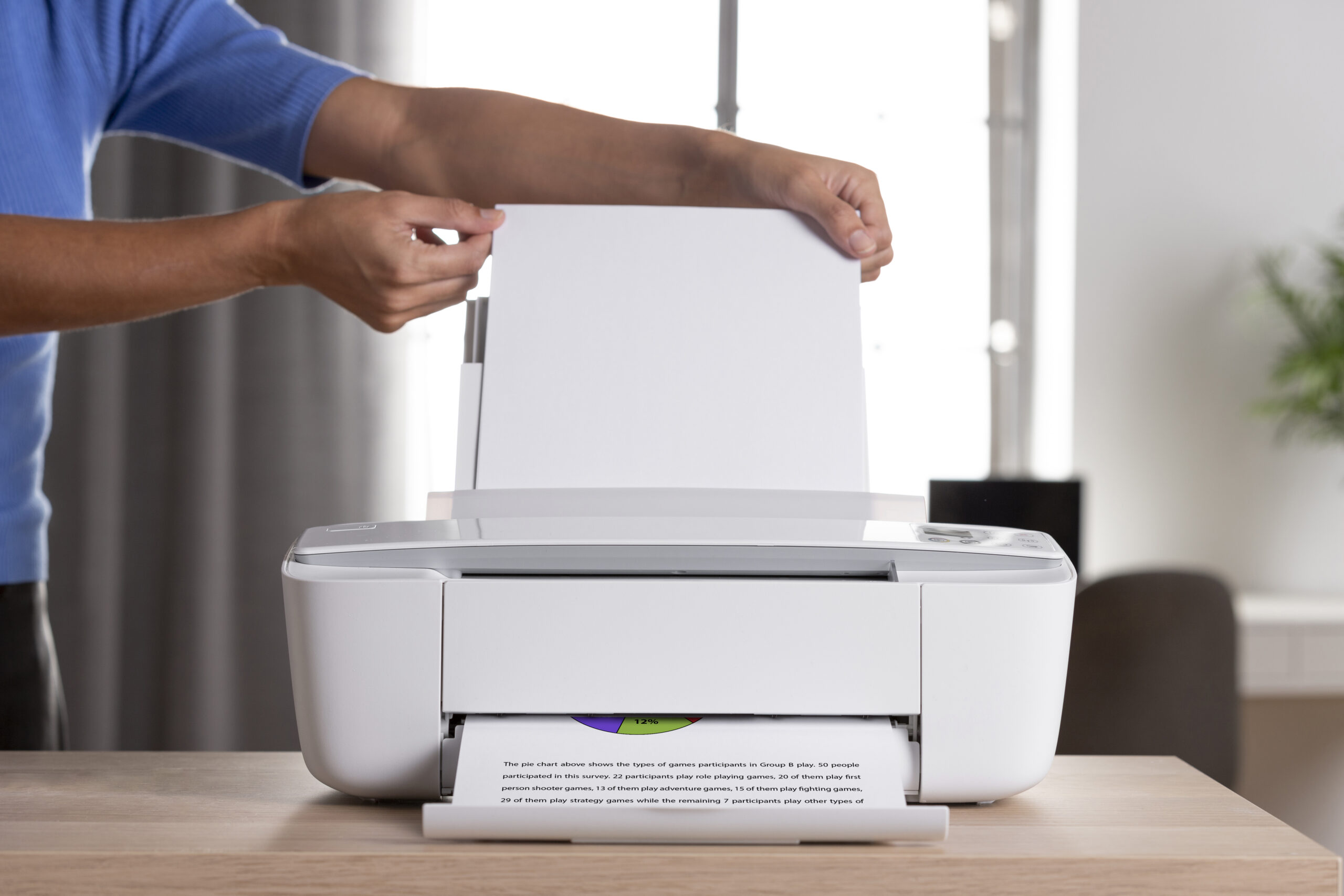
  • Printer “Not Responding”? A Full Troubleshooting & Stability Guide (Windows & macOS)

    Printer “Not Responding”? — Full Troubleshooting & Stability Guide (Windows & macOS)

    Printer “Not Responding”? — Full Troubleshooting & Stability Guide (Windows & macOS)

    Fix printer not responding error on Windows and macOS
    Fix “Not Responding” Errors on Windows & macOS

    “Not Responding” looks scarier than “Offline”, but the root cause is usually similar: the computer sends a job and the printer doesn’t answer quickly enough. Instead of saying “Offline”, Windows or macOS freezes the queue and shows “Not Responding”. The good news: hardware is rarely the issue—this is about the connection, the print queue, or the port type. This guide explains how to diagnose calmly, fix cleanly, and stabilise the setup so you don’t see the error again.

    Key difference: “Offline” means the printer isn’t reachable at all. “Not Responding” means it was found, but the conversation stalled—like calling someone and the line going silent.

    Quick Checks (Before You Panic)

    • Cable sanity: if using USB, reseat both ends. Try a different cable/port if available.
    • Panel health: make sure the printer’s screen shows “Ready” and no paper/jam errors.
    • Test page from printer itself: most printers can print a “Network/Config page” directly from the panel. If this works, the printer hardware is fine.
    • Network check: if Wi-Fi, confirm the printer’s Wi-Fi light is steady and it’s on the same SSID as your laptop.

    Windows: Fixing “Not Responding”

    Step 1 — Reset the Print Spooler

    1. Press Win+R → type services.msc.
    2. Scroll to Print Spooler, right-click → Restart.
    3. If jobs remain stuck: Stop the service → go to C:\Windows\System32\spool\PRINTERS → delete files → Start the service.
    Spooler resets clear “ghost jobs” that block the queue and trigger “Not Responding”.

    Step 2 — Add Printer by IP with Stable Port

    • Settings → Bluetooth & devices → Printers & scanners → Add device.
    • If not listed, click Add manually → Add by IP address.
    • Protocol: prefer IPP. If missing, choose TCP/9100.
    • Print a Windows test page. If it prints but still says “Offline/Not Responding”, untick SNMP Status Enabled in Port settings.

    Step 3 — Driver & Queue Refresh

    Windows may hold on to an outdated driver. Remove duplicate entries (“Copy 1/2”). Then reinstall only one clean IPP/TCP entry. If special vendor features are needed, install the driver but keep the port as IPP/TCP.


    macOS: Fixing “Not Responding”

    Step 1 — Resume or Reset the Queue

    • If the printer shows “Paused”, click Resume.
    • If jobs stall, open Printers & Scanners → right-click → Reset printing system….
    • Add fresh as AirPrint (IPP) or via the IP tab with protocol = IPP.

    Step 2 — Use Stable Presets

    macOS sometimes forgets settings if left to “Default”. Save a Preset (A4, Duplex, Normal quality) and assign it to only this printer. That prevents repeated stalls.

    Step 3 — Isolate the Issue with Mobile Print

    If iPhone/iPad prints fine but Mac doesn’t, the printer itself is healthy. The issue is the Mac queue or discovery. Remove & re-add via IPP to bypass Bonjour quirks.


    Advanced Stability Fixes

    • Reserve IP: In your router, bind the printer’s MAC address to a fixed IP. Prevents changing targets.
    • QoS (Quality of Service): If router supports it, prioritise printer traffic. Stops stalls during heavy downloads/streams.
    • Firmware update: Some printers release fixes for random freeze bugs. Check once via official app/site.
    • SNMP off: On TCP ports in Windows, disable SNMP if the printer responds to jobs but status says “Not Responding”.

    Quick Diagnostic Table

    SymptomLikely CauseFix
    Jobs stuck, “Not Responding”Spooler cache jammedReset spooler & clear queue
    Prints once, then stallsDiscovery timeoutAdd via IPP, reserve IP
    USB works, Wi-Fi failsNetwork/SSID mismatchUse same SSID, reserve IP, re-add clean
    Works for phone, fails for PCQueue corruptionRe-add on PC, use IPP port

    Make “Not Responding” Rare (Prevention Habits)

    • Monthly test print to keep spooler queues clean.
    • Reserve printer IP so jobs don’t chase moving addresses.
    • Delete duplicates (“Copy 1/2”)—they confuse Windows/macOS.
    • Keep printer on 2.4GHz Wi-Fi for stability; laptop/phone can roam 5GHz.

    FAQs

    Why does USB printing work but Wi-Fi says “Not Responding”?

    USB success proves hardware is fine. The issue is the network path. Add the printer by IP with IPP, reserve that IP in your router, and ensure both laptop & printer are on the same SSID (2.4GHz preferred).

    Windows shows “Not Responding” after every large PDF. Why?

    Large jobs stress the spooler. Update the driver, prefer IPP port, and let the job finish spooling before sleeping/closing the lid. If needed, split PDFs into smaller parts.

    Mac prints once then freezes. What’s the cure?

    Remove and re-add via IP tab with IPP. Reset the printing system if the list is cluttered. Save a stable preset so macOS doesn’t flip defaults each time.

    Why disable SNMP in Windows ports?

    SNMP (status check) often fails on home routers, making Windows think the printer is “Not Responding” even while jobs print. Unticking SNMP makes status simpler but reliable.

    Do I need vendor software or is IPP enough?

    IPP is enough for most home tasks. Vendor apps add extras (like scanning or ink alerts) but keep the port as IPP/TCP so reliability doesn’t depend on discovery.

    Nex Solutions provides brand-neutral education only. No remote access, repairs or warranty services.

  • Print from Your Phone or Tablet — AirPrint, Android Print Service, Wi-Fi Direct & Reliable Workflows

    Print from Your Phone or Tablet — AirPrint, Android Print Service, Wi-Fi Direct & Reliable Workflows

    Print from Your Phone or Tablet — AirPrint, Android Print Service, Wi-Fi Direct & Reliable Workflows

    Print from mobile devices at home
    Print from Your Phone or Tablet

    Mobile printing is simple when you follow a clean order: put the printer on the right Wi-Fi band, confirm that the phone and printer share the same network, use the built-in print system on your device, and send a small test before printing something important. Most frustrations (“printer not found”, half-printed photos, pages shrinking or cropping) come from network band mismatches, guest/isolated Wi-Fi, or choosing the wrong paper options. The methods below are brand-neutral and work with the majority of home printers that support modern phone standards.

    On iPhone and iPad, printing is built in through **AirPrint**: you tap Share → Print, choose the printer, and set options like copies, duplex, range, and “fit to page”. On Android, printing is built into the system via the **Android Print Service** (compatible with Mopria). Once enabled in Settings, you use Share → Print from any app that supports printing and adjust paper size, orientation, and color. If you don’t have a working router or you’re visiting somewhere with a complicated network, most home printers can create a temporary Wi-Fi Direct network; your phone joins that direct network to print one-to-one without internet. This guide covers all three paths, plus practical file workflows like exporting photos or web pages to proper PDFs, merging multiple images into one document, and getting trustworthy duplex (two-sided) output without upside-down pages.

    Everything here is educational and safe—no remote access, no brand-locked apps required. Wherever this guide mentions toggles or menus, the exact wording on your device may differ slightly, but the idea stays the same. Keep the printer a couple of metres from the router during setup; use the 2.4 GHz band for the printer; put your phone on the same SSID (network name); and avoid guest networks that intentionally block devices from seeing each other. Follow the steps in order and you’ll get reliable, predictable results from your phone or tablet.


    At a glance — pick the fastest path that fits your situation

    SituationBest methodWhy it works
    Home Wi-Fi is working; printer is already on Wi-FiAirPrint (iOS/iPadOS) or Android Print ServiceUses the phone’s built-in print system; no extra apps or accounts
    No router available or house network is locked downWi-Fi Direct to the printerPhone joins the printer’s temporary network; prints without internet
    Printer is USB-only; you still want to print from phoneShare to computer then print from the computerReliable fallback: move the file to Windows/macOS and print normally
    You need long documents to scale and duplex correctlyExport to PDF first; then print the PDFPDF keeps layout stable, prevents odd image cropping

    Prepare once — it prevents most “printer not found” issues

    1. Put the printer on 2.4 GHz Wi-Fi (the longer-range band). Many home printers don’t join 5 GHz. Keep the printer near the router during setup.
    2. Join your phone to the same SSID. If your router broadcasts separate names for 2.4 and 5 GHz, choose the 2.4 GHz network for initial tests.
    3. Avoid guest networks and isolation modes. These purposely block device-to-device traffic; phones then can’t see printers even though both have internet.
    4. Turn off VPN on the phone during the first print test; VPNs may block local discovery.
    5. Load fresh A4 paper and make sure the tray guides are snug. Correct paper settings reduce surprises later.

    Method 1 — iOS/iPadOS with AirPrint (built in)

    AirPrint is Apple’s built-in printing standard. You don’t install drivers or brand apps. If the printer and phone are on the same Wi-Fi, AirPrint usually finds it instantly.

    Print a photo or document

    1. Open the photo, PDF, email or web page on your iPhone/iPad.
    2. Tap Share (the square with the arrow) → scroll and choose Print.
    3. Tap Printer → choose your printer from the list that appears.
    4. Set options: copies, color/B&W, double-sided (if supported), and paper size. Use A4 unless you’ve actually loaded something else.
    5. For long docs, tap Range to print a few pages first (e.g., 1–2) as a check. Then print the rest.

    Get photos to fill the page without awkward cropping

    • Most phone photos are 4:3 or 16:9; A4 is different. Select Fit to page where available so nothing gets cut off.
    • For borderless-style prints on plain A4, accept small white margins for accurate layout. Full-bleed is typically for special photo media.

    When AirPrint can’t see the printer

    • Confirm the printer’s Wi-Fi light is steady, not blinking; blinking usually means “not joined yet”.
    • Put the phone on the printer’s same SSID (2.4 GHz). If you’re on cellular or 5 GHz during setup, discovery may fail.
    • Disable VPN and private relay features temporarily; they can block local lookups.
    • Restart the printer, then the phone; open any app and try Share → Print again.
    • If the home network has “AP isolation” or a strict guest network enabled, switch both devices to the main network for printing.

    Method 2 — Android with the system Print Service (Mopria-compatible)

    Modern Android includes a system print framework. Once the default Print Service is on, any app that can print lets you use Share → Print, pick a printer, and set options like copies, color, paper size, orientation and duplex.

    Enable and test

    1. On your phone, open Settings → search for Printing or Print services.
    2. Turn on the system Print Service if it’s off.
    3. Connect to the same Wi-Fi SSID as the printer (prefer 2.4 GHz for reliability).
    4. Open a photo, PDF or web page → tap Share → choose Print.
    5. Select your printer → adjust Paper size = A4, orientation (Portrait/Landscape), color, and Two-sided if available → Print.

    Scaling & margins that look professional

    • Use Fit to page to avoid clipping. If text looks too small, switch orientation and re-print a sample page first.
    • For images, choose “Fill” only when you’re happy to crop edges. “Fit” preserves the whole image.

    When Android can’t find the printer

    • Same network rule: phone and printer on the same SSID, ideally 2.4 GHz for the printer.
    • Turn off mobile data/VPN while testing; keep the phone with a strong Wi-Fi signal near the printer/router.
    • Restart Print services (toggle them off/on) and reboot the printer.
    • If the router has a guest network or client isolation, move both devices to the main network.

    Method 3 — Wi-Fi Direct (no router required)

    Wi-Fi Direct creates a temporary network broadcast by the printer. Your phone joins that network just for printing. It’s great when visiting a place without reliable Wi-Fi or when you want a direct connection for a quick print job.

    General steps (works similarly on iOS and Android)

    1. On the printer, enable Wi-Fi Direct (or “Direct Wireless”) from its network menu. The printer will show a temporary network name and, often, a password.
    2. On the phone, open Wi-Fi settings → join the printer’s temporary network using the password shown on the printer’s panel or network report.
    3. Return to your app → choose Share → Print → pick the printer.
    4. Print a simple test page. When done, rejoin your usual home Wi-Fi network.
    Note: Wi-Fi Direct is one-to-one printing. Internet is not shared. For big jobs, stay close to the printer; the direct link is short-range by design.

    Method 4 — Share to computer, then print (USB-only printers or tricky networks)

    Some home printers are USB-only, or your home Wi-Fi may block device discovery. In those cases, the simplest reliable path is to send the file from your phone to a computer, then print normally from Windows/macOS using the steps you’ve already set up.

    Quick path

    1. On your phone, Share the file to yourself (email) or a trusted cloud folder you control.
    2. Open on the computer. Print from a desktop app (TextEdit/Word/Reader) to the already-added printer entry (prefer IPP/AirPrint on macOS or IPP/TCP on Windows).
    3. For consistent layout, export to PDF on the phone first, then print the PDF on the computer.

    PDF first — the “do-not-break” layout method

    Phones are great at viewing content, but the layout you see in an app doesn’t always match how a printer expects the page. Exporting to PDF locks the layout. The file then prints consistently from phone or computer.

    • iOS/iPadOS: from the Share sheet, choose Print → pinch the preview to zoom → tap Share again → save/share the resulting PDF.
    • Android: choose Print → select Save as PDF as the “printer” → save → share/print that PDF.

    Once you have a PDF, both AirPrint and Android Print Service respect sizes and margins more faithfully, and duplex comes out correctly when set to two-sided.


    Photos vs documents — different expectations, different settings

    Photos

    • Choose Fit to page to avoid cutting off heads or corners.
    • Use fresh A4 and accept small margins for clean edges; borderless is typically for special photo papers and may not be offered on plain A4.
    • If a print looks too dark, it’s often the phone’s auto-bright screen tricking you. Increase exposure slightly before printing or try a test on Normal quality first.

    Documents

    • Print as PDF whenever possible; it preserves fonts, spacing and pagination.
    • Make sure paper size is A4 in the print options. If you see tiny pages, change scaling from “Shrink” to “Fit”.
    • For two-sided, choose Short-edge or Long-edge binding correctly (often “Long-edge” for portrait A4 documents). If a test flips upside-down, switch the binding edge and reprint.

    Network realities — why phones “can’t find” printers even at home

    • Different bands/SSIDs: your phone is on a 5 GHz SSID, the printer is on 2.4 GHz with a different name. Put both on the same SSID for discovery.
    • Guest network / AP isolation: these modes block device discovery by design. Use the main home network for printing.
    • VPN / private relay: these routes traffic away from your local network. Disable during printing.
    • Weak signal: phones are clever at clinging to Wi-Fi with one bar; printers are not. Move the printer closer to the router.
    • Address changes: if the printer’s IP changes, some devices hesitate. Reserve the printer’s IP in your router for stability.

    Reliability plan — set once, enjoy later

    1. Reserve the printer’s IP in your router (DHCP reservation). It keeps the network identity stable for all devices.
    2. Keep printer on 2.4 GHz. It’s the reach-friendly band; phones can use 5 GHz freely.
    3. One clean entry per device: avoid duplicate printer entries on your phones and computers.
    4. Use PDFs for complex layouts and multi-page items. Save favorite options as presets where your device allows.
    5. Light maintenance: fresh paper, clear print queues, restart the printer occasionally if you notice lag or status glitches.

    Troubleshooting — fast diagnosis by symptom

    SymptomLikely causeTry this
    “No AirPrint Printers Found”Different SSID/band; guest isolation; VPNPut phone and printer on same SSID (2.4 GHz); disable VPN; restart both
    Android “No printers” in Print dialogPrint Service off; same network rule brokenEnable Print Service in Settings; join same SSID; toggle service off/on; retry
    Photos clip at the edgesUsing “Fill” on an A4 pageSelect “Fit to page”; accept small borders for accurate framing
    Two-sided flips upside-downWrong binding edgeSwitch between Long-edge and Short-edge in print options; print a 2-page test
    Printer shows but jobs never startWeak Wi-Fi; device in sleep; address changedMove printer near router; wake it fully; reserve IP; retry with a small PDF

    Workflows that save time (and mistakes)

    Quick export to PDF from a web page

    Browsers reflow pages to fit small screens, which can scramble print layout. Use the built-in Print → Save as PDF path first; check that the PDF pages look sensible; then print that PDF. Your output will match what you previewed and text stays sharp.

    Combine multiple images into one document

    Instead of printing 8 separate photos that each shrink unpredictably, assemble them into a single PDF. On iOS you can choose Print, pinch to zoom the preview, then Share the PDF; on Android, Print → Save as PDF. Arrange the order before saving if your viewer offers thumbnails. Now you can duplex the set cleanly.

    Share to desktop instantly

    If the phone struggles to discover the printer on Wi-Fi, share the file to your computer over your usual method (email to yourself, cloud sync, or local transfer). Then print from Windows/macOS where you already have stable drivers and ports. This keeps the “mobile” part simple and avoids wrestling with discovery for one urgent job.


    Security & privacy notes (simple and safe)

    • Home network only: avoid public Wi-Fi for printing. If you must, use Wi-Fi Direct to the printer and disconnect afterwards.
    • Temporary PDFs: delete sensitive PDFs from your phone’s downloads after you’ve printed them.
    • No remote access needed: these steps don’t grant strangers access. Everything is local and you stay in control.

    Advanced corner cases (only if you’re curious)

    • Mesh networks: for the first print test, keep your phone and printer near the same mesh node; some meshes isolate wireless clients on different nodes.
    • Multicast discovery: AirPrint uses local announcements that some routers throttle. If discovery is flaky, add the printer to a computer first and print from there; later, try again from the phone once the printer’s IP is reserved.
    • Captive portals: hotel/guest networks that require a browser login often block printing entirely. Use Wi-Fi Direct or stick to the share-to-desktop method.

    FAQs

    My phone sees home Wi-Fi and the printer is connected, but AirPrint/Android still can’t find it. What am I missing?

    Three things cause almost all “I can’t find my printer” moments on phones. First, the same SSID rule: your phone must join the exact same network name that the printer joined. If your router broadcasts “Home-2G” and “Home-5G”, put the printer on the 2.4 GHz one, then join that same name on your phone for the first test—discovery usually fails when the phone sits on a different SSID. Second, guest networks and AP isolation intentionally block devices from seeing one another; they’re great for visitors but terrible for printing. Make sure both devices are on the main home network where local discovery is allowed. Third, VPNs and privacy relays route traffic in ways that hide your printer. Disable those temporarily and retry. If it’s still invisible, restart the printer and phone, move close to the router, and print a one-page PDF. Add a DHCP reservation for the printer’s IP to stabilise it for future attempts.

    How do I stop photos from cropping or shrinking to a tiny box on A4?

    Phone photos have aspect ratios that rarely match A4. If you choose “Fill”, the system fills the page by cropping edges; if you choose “Fit”, it preserves the entire image but leaves comfortable margins. For family photos or ID scans, use Fit. If the print looks too small, switch orientation (landscape vs portrait) so the image’s long edge matches the page’s long edge. Printing as a PDF first also helps, because you see a fixed preview of each page before printing; if something looks off, rotate or scale in the PDF viewer, then print. Avoid trying to force “borderless” on plain A4; that’s designed for special media and can cause unexpected scaling. With Fit + the right orientation, you’ll get predictable, professional-looking results without chopped faces.

    Two-sided prints keep flipping the second page upside-down. Which setting fixes that?

    This is a binding-edge mismatch. Duplex has two options: Long-edge (like turning pages in a book) and Short-edge (like flipping a notepad). For portrait A4 documents, Long-edge is usually correct. If your second page comes out upside-down, switch to the other binding option and try a two-page test first. Once it’s correct, save that combination as a preset on your device so you don’t have to remember it. Also, make sure your paper size really is set to A4 in the print options; incorrect size forces scaling and can confuse margin rotation. After you get one clean duplex test, the same option will work consistently for all similar documents.

    I don’t want to install brand-specific apps. Can I still print everything I need from phone?

    Yes. Your phone’s native print system does almost all everyday jobs without brand software. On iOS/iPadOS, AirPrint is built in; on Android, the system Print Service covers the basics and works with many home printers. You can print photos, PDFs, emails and web pages directly. For stubborn websites or odd formats, the universal trick is Print → Save as PDF, check the PDF looks right, then print that PDF. If your printer is USB-only or the network is complicated, share the file to a computer and print from there using a stable IPP/TCP setup. These methods are reliable, safe, and keep you in control without installing brand-locked apps.

    I’m away from home and there’s no Wi-Fi I trust. Can I still print a ticket from my phone?

    At a friend’s house or a temporary space, the simplest safe method is Wi-Fi Direct. Enable it on the printer, join the printer’s temporary network from your phone, and print the PDF. You won’t have internet while you’re connected to that network, but the job goes straight to the printer and you disconnect afterwards. If the place offers only a public Wi-Fi with a captive portal, printing from phones is often blocked by design. In that case, share the ticket to a local computer you trust and print from there, or wait until you’re back on a private network. Avoid entering passwords or sensitive documents on public kiosks. The key principle is local, direct paths you control—Wi-Fi Direct and PDF workflows are perfect for that.

    Nex Solutions provides brand-neutral education only. No remote access, repairs or warranty services.

  • Fix Lines, Streaks & Faded Prints — Deep Cleaning, Calibration & Reliable Results (Windows & macOS)

    Fix Lines, Streaks & Faded Prints — Deep Cleaning, Calibration & Reliable Results

    Fix Lines, Streaks & Faded Prints — Deep Cleaning, Calibration & Reliable Results

    Fix streaks, banding and faded prints
    Fix Lines, Streaks & Faded Prints

    Streaks, pale colours, or zebra-like bands almost always come from the same handful of causes: blocked ink nozzles (inkjet), worn/dirty rollers or a tired drum (laser), the wrong paper settings for the sheet you loaded, or a driver option that forces economy mode when you didn’t mean it. The good news is you can fix each cause safely at home with a few careful steps—no brand-specific tricks needed. This guide keeps everything simple, brand-neutral, and reversible. We’ll start with quick checks that solve a surprising number of cases in minutes, then move into proper cleaning, alignment, and media choices so your pages look crisp and consistent again.

    We’ll separate advice where it matters: **inkjet** vs **laser**. You’ll also see how paper humidity and storage change print quality, why “A4 vs Letter” quietly breaks margins and colours, and which Windows/macOS settings actually help (IPP/AirPrint, print quality modes, colour controls). Finally, you’ll get a prevention plan so you don’t have to redo these fixes every few weeks. Keep the printer near your router during any firmware or driver updates, stick to plain A4 for diagnostics, and avoid third-party “cleaning fluids” unless your manual explicitly allows them. Let’s bring the quality back.


    Identify the defect you see (name it to solve it)

    What you seeTypical causesFastest test
    Horizontal bands (light/dark stripes across the page)Ink nozzles blocked; high-speed bidirectional misalignment; low ink; economy modePrint a nozzle/check pattern (inkjet) or switch to “High quality/Best” to test banding
    Vertical streaks (down the page)Dirty encoder strip (inkjet); scratched or dirty drum (laser); debris on rollersPrint a solid light-grey rectangle; inspect streak position consistency
    Washed-out coloursWrong paper type; economy/Draft mode; nearly empty ink/toner; damp paperChange paper type to “Plain A4”; set Normal/Standard quality; use fresh sheets
    Patchy textFoamy ink/air in cartridge; clogged black nozzles; toner not fused wellRun one cleaning cycle (inkjet) or print 5 blank pages to reheat fuser (laser)
    Colour cast (everything looks too blue/green/red)Incorrect colour profile; grayscale forced; uneven clog in one colourDisable grayscale; print nozzle test; try IPP/AirPrint driver path

    Quick fixes that solve more than half of cases

    1. Use fresh A4 paper from a sealed pack. Humidity curls fibres and weakens contrast. Fan the stack, square edges, load 10–15 sheets.
    2. Match the driver to the paper. In your print dialog, set Paper size: A4 and Paper type: Plain (unless you loaded thick/photo stock). Set quality to Normal/Standard (not Draft).
    3. Print a built-in test page:
      • Windows: Settings → Bluetooth & devices → Printers & scanners → your printer → Print a test page.
      • macOS: TextEdit → File → Print → Show Details → choose your printer → print a simple page of “AAAA…”.
    4. Try IPP/AirPrint path. If you installed heavy vendor drivers long ago, add a fresh entry via AirPrint/IPP (macOS) or add-by-IP and select IPP (Windows). This removes odd processing filters that can mute colour.
    5. Run the manufacturer’s “nozzle check / cleaning” (inkjet) or print 3–5 blank pages to warm the fuser and redistribute toner (laser).

    Inkjet — Fix banding, streaks and pale prints (safe & effective)

    1) Print the nozzle check pattern

    This diagnostic grid shows tiny gaps where a colour is clogged. Find it in the printer’s maintenance menu (panel or driver utility). If any colour shows broken lines, run a Cleaning cycle once, then reprint the pattern.

    2) Clean in short, spaced cycles

    • Run one cleaning cycle → wait 10 minutes (gives ink a chance to re-wet dried nozzles).
    • Run a second cycle only if the pattern still shows gaps. Two to three cycles are plenty; nonstop cleaning wastes ink and overheats the head.

    3) Check cartridge seating and air vents

    • Open the carriage. Press each cartridge gently; you should feel a clean “click”.
    • Look for any shipping tape you forgot to remove from the ink outlet or the small air vent on top. A blocked vent causes faint or vanishing colour after a few lines.
    • Wipe the copper contacts (cartridge and carriage) with a lint-free cloth just slightly dampened with distilled water; dry fully before reseating.

    4) Align the printhead

    Most inkjets support an Alignment routine that prints patterns and asks you to pick the sharpest rows. Misalignment shows as fine horizontal banding on fills or jagged text edges. Run alignment after cleaning, or after installing new cartridges.

    5) Try unidirectional/high-quality mode briefly

    Bidirectional (faster) printing can show bands if the carriage timing is off. In the print dialog, select High quality or disable high-speed/bidirectional mode as a test. If banding disappears, leave high-speed off for photos; you can keep it on for rough drafts.

    6) Media matters

    • Plain copy paper soaks ink differently to coated photo paper. If the driver thinks you’re on photo paper but you loaded plain A4, colours will look odd and may streak.
    • Set the correct paper type. For everyday docs, “Plain” is right; for photo paper, choose the closest coated option.

    7) If a colour is totally missing

    • Swap the suspect cartridge temporarily (if you have a spare) to prove whether the blockage is in the cartridge or the head.
    • If your model has a removable head, many manuals allow soaking the head on a paper towel lightly dampened with warm distilled water for a few minutes to loosen dried ink. Only do this if the manual allows; otherwise stick to built-in cleaning cycles.

    Laser — Fix grey lines, background haze and weak fills

    1) Toner rediscovery (simple shake)

    Remove the toner cartridge carefully, cover the opening, and gently rock it side-to-side to redistribute toner evenly. Do not touch the green/blue drum surface with fingers.

    2) Inspect the drum and path

    • If your model has a separate imaging drum, look for repeating dots or lines. If a defect repeats at equal intervals down the page, that often matches the drum circumference and hints the drum needs replacing.
    • Use a dry, lint-free cloth to remove loose toner inside the cavity. Avoid canned air; it spreads toner dust onto sensors.

    3) Paper and fusing

    • Use fresh A4. Damp paper prevents toner from fusing cleanly, giving a dusty finish that wipes off.
    • In the driver, choose the right media type (e.g., “Thick” for card). This changes fuser temperature and speed so toner bonds properly.

    4) Transfer path

    If solid areas look patchy, the transfer roller may be contaminated. Many home models self-clean when you print 5–10 blank pages. For persistent defects, the roller may need replacing according to the maintenance schedule.


    Windows & macOS settings that actually improve quality

    • Use IPP/AirPrint where possible. It simplifies colour handling and avoids brittle, legacy drivers.
    • Disable Draft/Economy for anything important. Use Normal/Standard as your default preset.
    • Pick A4 and the right media type every time you switch paper. Save presets (“A4 Plain – Normal”, “A4 Photo – High Quality”).
    • Edge smooth / anti-banding options: some drivers offer “High quality text/graphics” or “unidirectional” toggles; try them for streak-sensitive prints.

    Paper, storage & environment — the hidden quality killers

    • Humidity control: keep paper sealed until use; store the spare ream in a dry cupboard. If pages feel wavy, swap in a fresh stack.
    • Don’t mix stocks in one tray (glossy + plain). Different friction causes skew and streaking.
    • Load correctly: fan, square, and align guides snugly—too tight bows the stack; too loose gives skew.

    Deep clean sequence (inkjet) — when quick fixes weren’t enough

    1. Nozzle check → Cleaning #1 → Wait 10 min → Nozzle check.
    2. If gaps remain: Cleaning #2 → Wait 15 min → Nozzle check.
    3. Still bad on one colour: reseat cartridge, inspect vent, clean contacts, then run Alignment.
    4. As a last safe step, try “Power clean” only if your manual includes it (it uses lots of ink). Avoid third-party fluids.

    Prevent it coming back (a light routine that works)

    • Weekly: print a small colour test (CMYK bars) so ink stays moving; for laser, a light grey page prevents ghosting.
    • Monthly: wipe paper dust from trays and the first visible roller with a dry lint-free cloth.
    • Seasonally: new ream of A4; discard end-of-ream sheets if they feel curled.
    • After cartridge changes: run Alignment once (inkjet) and a single solid-black page (laser) to stabilise tones.

    Troubleshooting table — quickest path from symptom to fix

    SymptomExact step to try next
    Fine horizontal bands on photosSet High quality (unidirectional), run Alignment, use coated media preset if on photo paper
    Vertical line that repeatsLaser: inspect drum for repeating marks; Inkjet: clean encoder strip carefully if manual allows
    Everything looks pale/greyDisable Draft; choose Plain A4; fresh paper; for laser print 5 blank pages to reheat fuser
    One colour missingInkjet: check vent, reseat, clean contacts, gentle cleaning cycle, then alignment
    Smudge on trailing edgeAllow longer drying (inkjet) or choose thicker media (laser) so fuser slows and bonds toner

    FAQs

    Why do banding lines appear mostly on photos and gradients, not on plain text?

    Banding shows most clearly where the printer must lay down smooth, continuous tones—like skies and gradient fills. Text is made of sharp edges and small solid regions that conceal tiny density differences, so you may not notice banding there. On inkjets, micro-misalignment between left-to-right and right-to-left passes creates faint light/dark stripes; on lasers, uneven toner distribution or limits in halftone calibration can do something similar. The quickest proof is to print the same image once at Normal and once at High quality (which slows the carriage or forces unidirectional passes). If the bands vanish at high quality, keep that preset for photos and use Normal for documents. Also ensure the paper type matches the sheet—coated photo paper with the correct driver preset often removes banding because ink sits on the surface rather than soaking unpredictably into plain paper fibres.

    My inkjet still looks faded after cleaning. Am I wasting ink by running more cycles?

    Heavy cleaning cycles can waste a lot of ink without improving things if the real cause is elsewhere (blocked air vent, misaligned head, or simply wrong paper settings). After one normal clean, wait ten minutes and recheck the nozzle pattern. If most lines are back but colours are still thin, switch to the exact paper type you loaded and set quality to Normal. Then run Alignment. If a single colour remains weak, reseat that cartridge, inspect its small air vent, and gently wipe the contacts. Only consider a “power clean” if your manual explicitly includes it and you’ve proved a stubborn clog on the test pattern. When cleaning is timed and limited like this, you’ll use far less ink and actually fix the root cause.

    Laser prints have a repeating dot/line every few centimetres. What part is failing?

    Repeating defects at a fixed interval almost always point to a rotating part: the imaging drum, fuser, or a transfer roller. If the interval matches the drum circumference listed in the service guide, the drum surface has a nick or contaminant. A fuser defect tends to gloss or smear after the page exits; a transfer roller issue shows as light gaps before fusing. Start by gently removing the toner cartridge and checking the drum (avoid touching it). If you can see a repeating blemish, replacing the drum unit is the reliable fix. Before ordering parts, print five solid-grey or black pages; sometimes toner redistribution or fuser reheating clears minor patterns caused by inactivity.

    Why do colours look wrong whenever I switch paper types?

    Paper controls how ink or toner interacts with the surface. Coated photo paper keeps ink on top, showing bright colours with minimal bleed; plain copy paper absorbs more, dulling saturation and changing how halftones blend. Your printer expects you to tell it which sheet you loaded so it can adjust ink limits, dot size, speed and, on lasers, fuser heat. If you send a job on “Photo” settings to plain paper, you’ll get mottling and strange hues; if you send a “Plain” job to glossy paper, colours can look flat and over-inked. The fix is simple: set the correct Paper type in the print dialog every time you change stock and consider saving presets (“Plain – Normal”, “Photo – High”). That single habit removes a large class of “mystery colour” problems.

    What’s the best low-effort routine to keep quality stable all year?

    Think small and regular. Once a week, print a one-page colour test (four small CMYK bars and a grey square) so inkjets don’t dry and lasers keep electrostatic parts active. Once a month, wipe tray dust and the first visible roller with a dry lint-free cloth, then load a fresh 10–15 sheet stack from a sealed ream. Each season, swap to a new ream entirely and throw away obviously curled or damp sheets. When you change cartridges, run alignment (inkjet) or a single solid black page (laser) before an important print job. Keep the driver presets simple (A4 Plain – Normal) and only switch to high quality when you truly need it. These tiny habits prevent the big time-sink cleans later.

    Nex Solutions provides brand-neutral education only. No remote access, repairs or warranty services.